The short answer
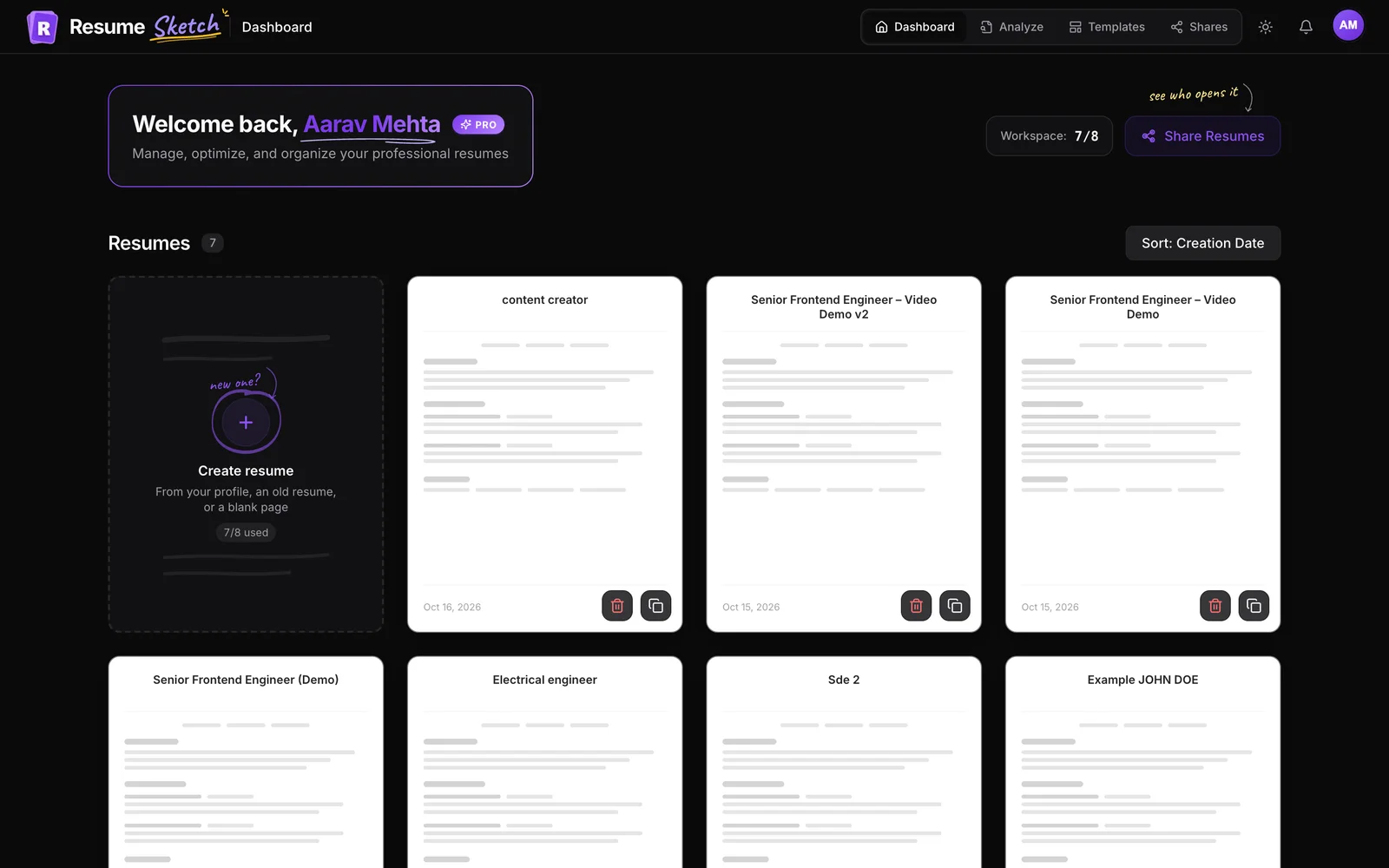
Create a free account, import your old resume into your master profile (or type it in once), then use the Create resume card on your dashboard to build a resume from that profile, an existing file or a blank page. Edit it in the editor with a live preview, pick a template under Design, and download the PDF. Most people have a first version ready in well under an hour.
01How Resume Sketch fits together
Before you click anything, it helps to know the three building blocks. Once you see how they connect, every other feature makes sense.
| Piece | What it is | Where you find it |
|---|---|---|
| Master profile | Everything you have done, stored once: experience, projects, education, skills and extra sections like certifications. | Profile |
| Resumes | Focused versions built from your profile, each aimed at one target role. You can keep several. | Dashboard (Home) |
| Templates | The design your content is printed in. Switch any time; your words stay the same. | Design, inside the editor, or the Templates page |
The idea is simple: you do the heavy typing once, in your profile, and every new resume after that takes minutes instead of an evening. When a recruiter asks for a version aimed at a slightly different role, you are not starting over.
02Step 1: Create your account
- 1
Open the sign-up form
Go to the app and choose Create account. You can sign up with your full name, email and a password, or continue with GitHub or LinkedIn.
- 2
Tick the consent boxes
Accepting the Terms and the Privacy Policy is required. There is also an optional box to share your starred resume with recruiters and hiring partners. Leave it unticked if you are not sure; you can change it later in Profile → Privacy & sharing. See how recruiter sharing works.
- 3
Confirm your email
If you signed up with email, check your inbox for the confirmation link. After that you land on your dashboard at
/home, where a short welcome walks you through the three first steps: complete your profile, create a resume, and apply.
03Step 2: Build your master profile
Your profile is where every resume pulls its content from. The fastest way to fill it is to import a resume you already have.
- 1
Open your profile
Open Profile from the app menu. The tabs on the left are Basics, Experience, Projects, Education and Skills, plus any extra sections you add.
- 2
Import an existing resume
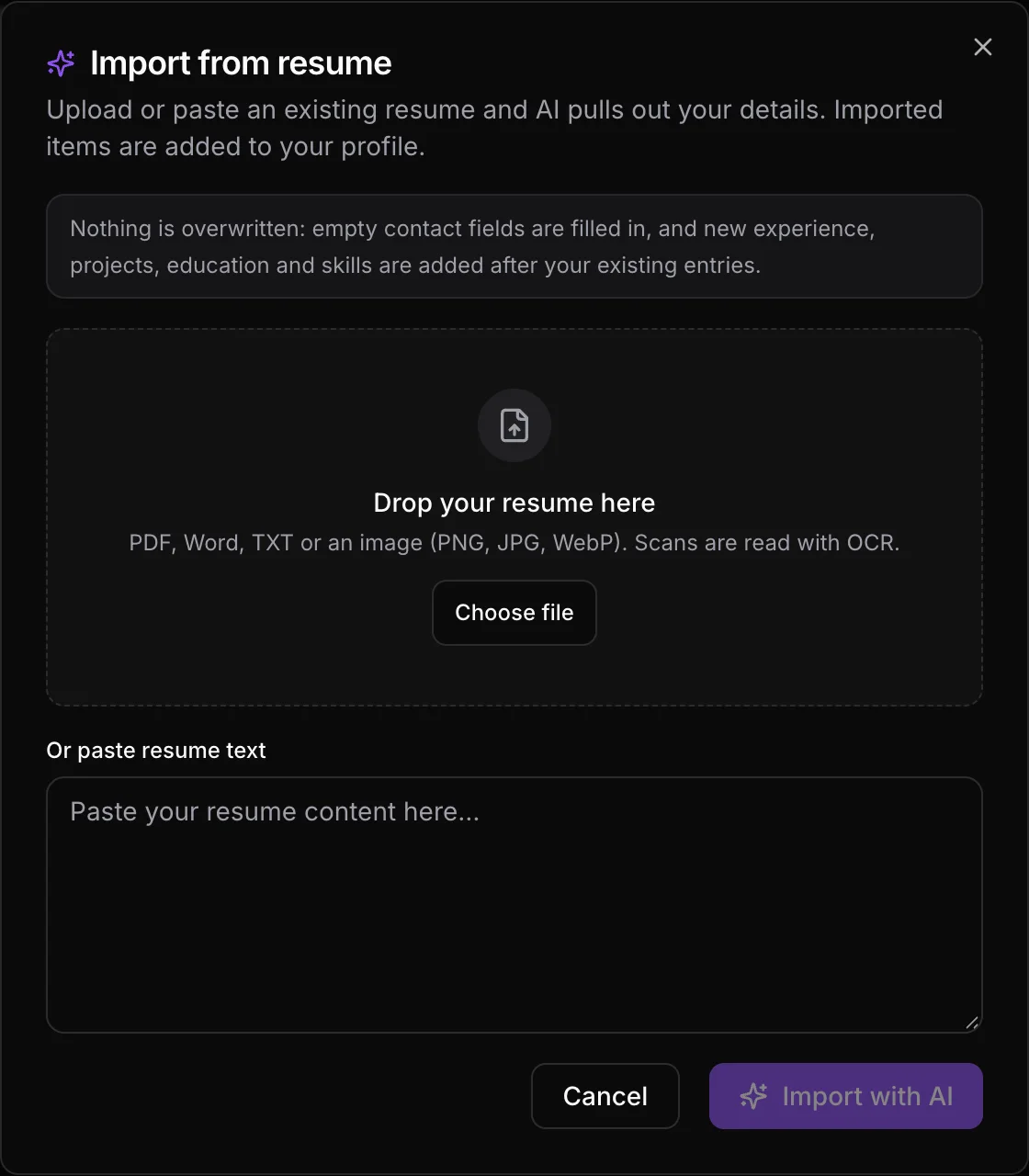
Click Import from resume at the top of the page. Drop in a PDF, Word file, text file or even a photo of a printed resume (scans are read with OCR), or paste the text. Then click Import with AI. It usually takes 10 to 30 seconds.
- 3
Review what was imported
Nothing is overwritten: empty contact fields are filled in, and new roles, projects, education and skills are added after anything you already had. Go through each tab and fix dates, job titles and anything the AI read wrong.
- 4
Add what your old resume left out
This is your master list, so be generous. Add the project you cut for space, the certification you earned last year, the side role you held. Each resume will only use the parts you choose. Click Save changes when you are done.
04Step 3: Create your first resume
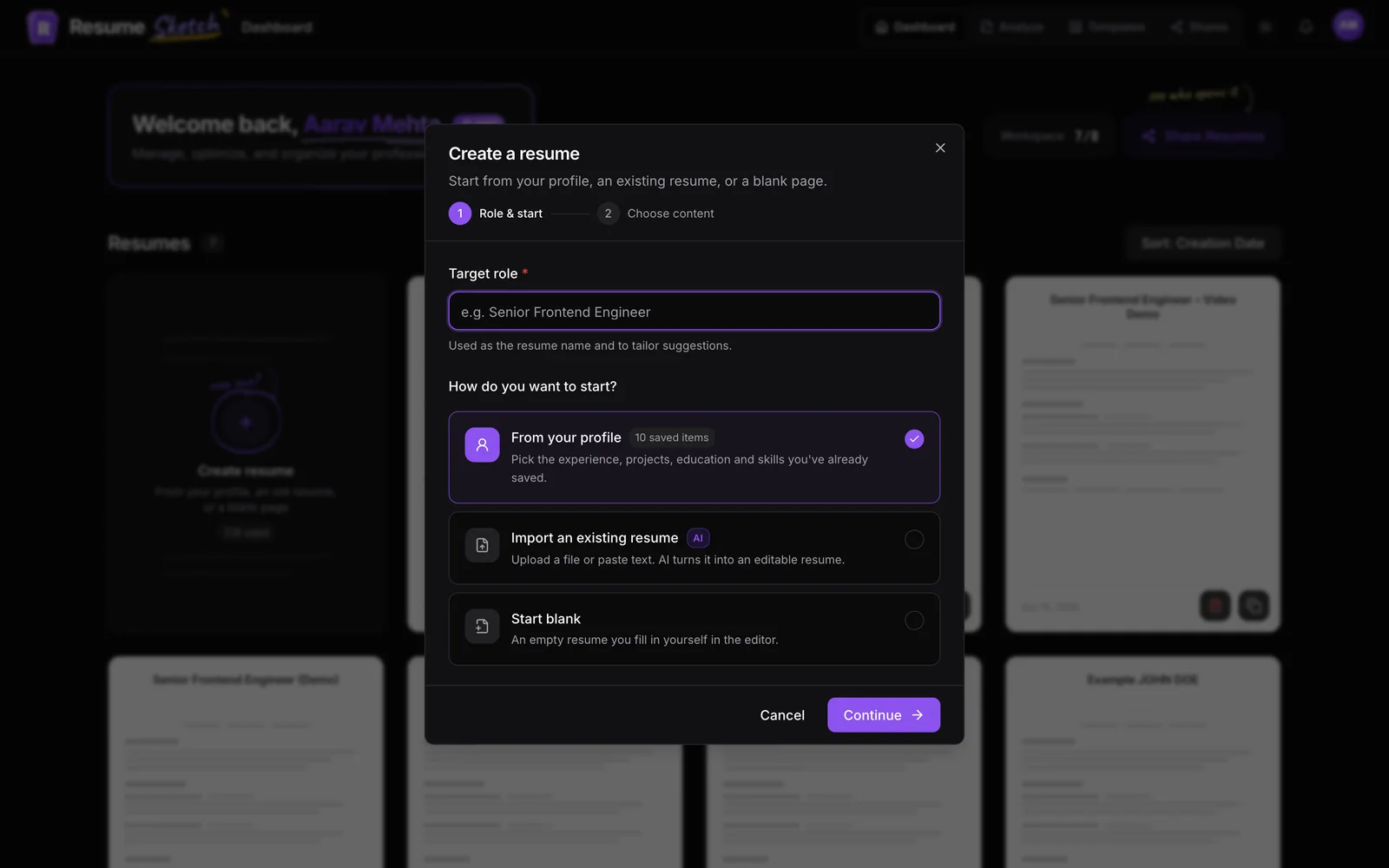
Back on the dashboard, click the Create resume card. The dialog has two short steps.
- 1
Enter your target role
Type the role you are applying for, such as Senior Frontend Engineer or Staff Nurse, ICU. It becomes the resume's name and helps the AI tailor its suggestions, so be specific.
- 2
Choose how to start
Pick one of three options under How do you want to start?, then click Continue. The table below helps you choose.
- 3
Choose content or add your file
From your profile lets you tick exactly which roles, projects, education and skills to bring in, plus your Additional sections. Import an existing resume asks for a file or pasted text. Start blank just confirms.
- 4
Create it
Click Create resume (or Create with AI for an import). The editor opens with your new resume.
| Start option | Best when | What happens |
|---|---|---|
| From your profile | Your profile is filled in (the usual case) | You pick items from your profile; nothing is retyped. |
| Import an existing resume | You want a quick copy of one old resume without updating your profile | AI turns the file or text into an editable resume. |
| Start blank | You are writing something very different, or prefer to type | An empty resume you fill in yourself. |
The card on the dashboard shows how many of your resumes you have used. The limit is 2 on Free, 8 on Pro and 20 on Max.
05Step 4: Edit your resume
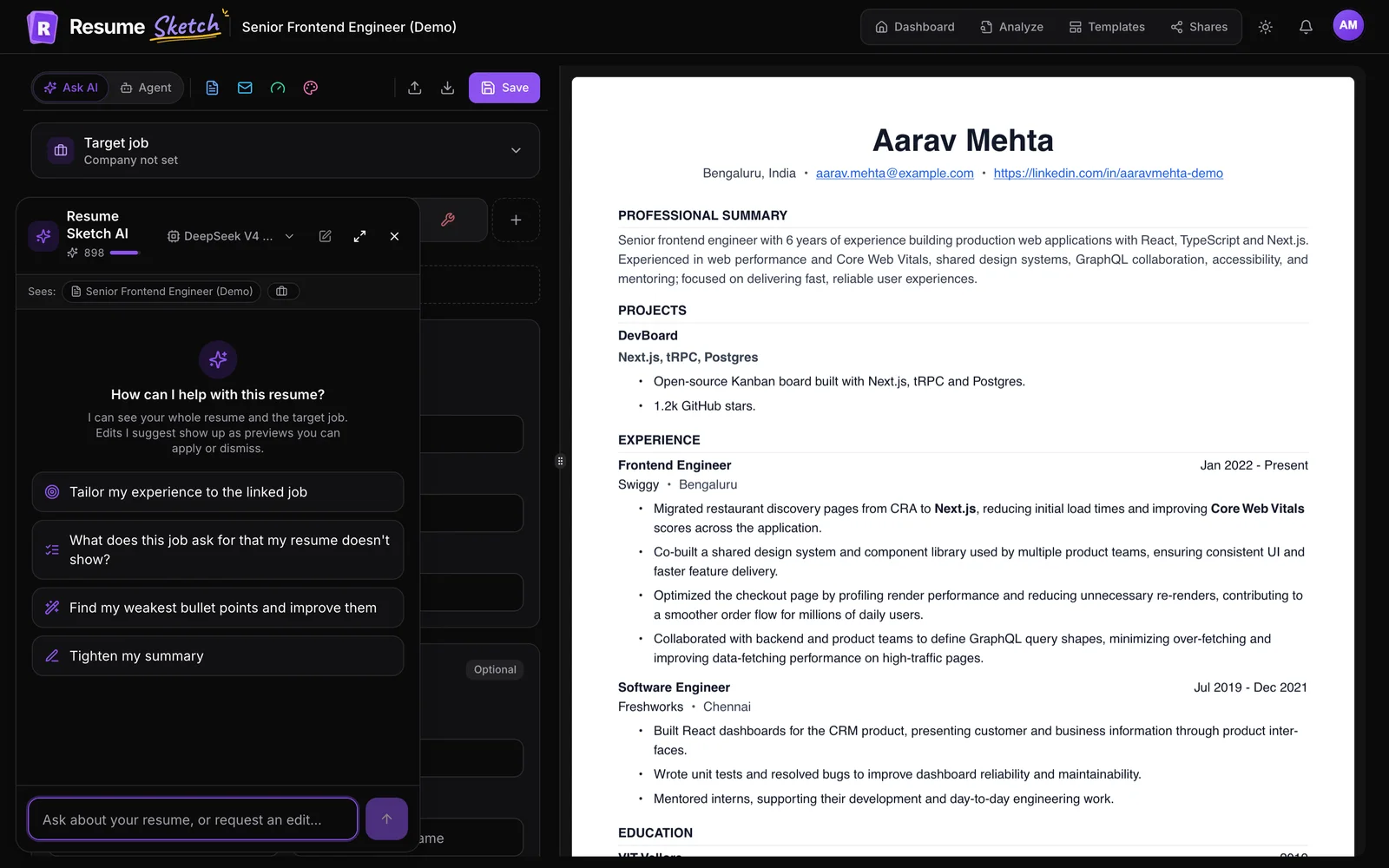
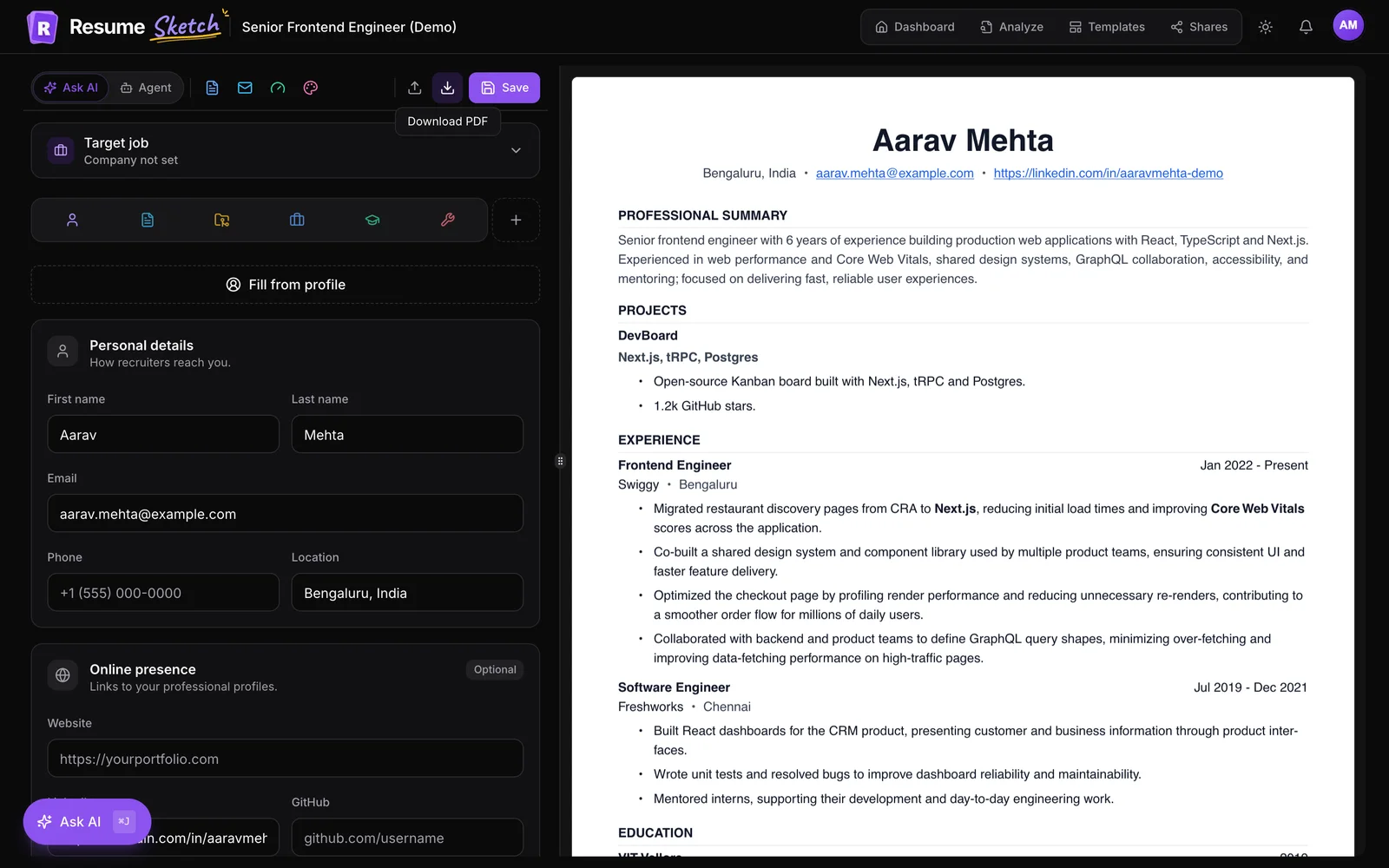
The editor has your sections on the left and a live preview of the finished page on the right. Every change shows up in the preview straight away.
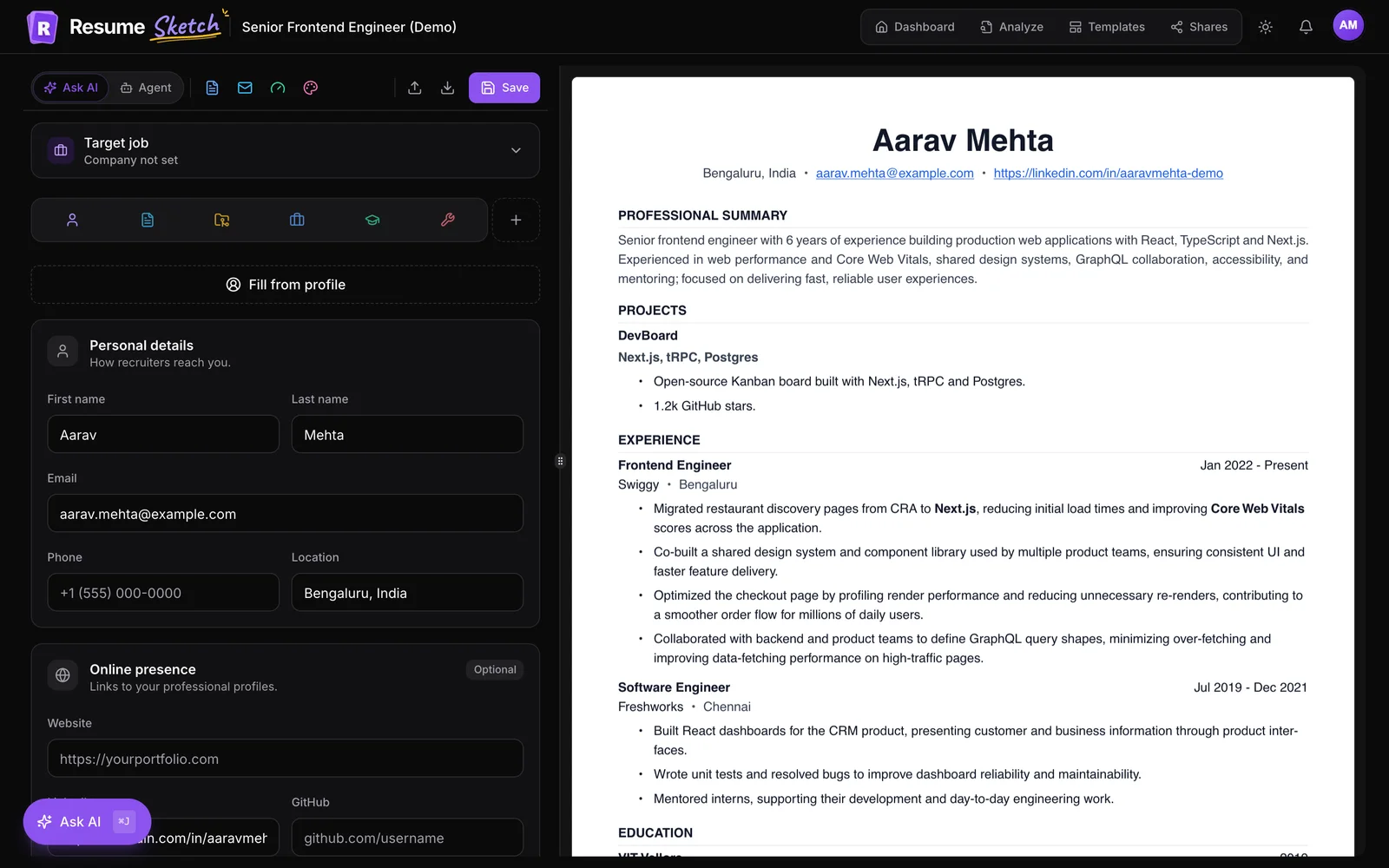
- Section tabs. Each section has its own tab: Basic info, Summary, Work Experience, Projects, Education, Skills and any extras (on narrower screens the tabs show as icons; hover for the name). Drag a tab to change the section order on the page. The plus button next to the tabs adds a section such as Certifications or Languages.
- Fill from profile. In Basic info, this button copies your contact details and links from your profile, so you never retype your phone number.
- Target job. The card at the top says Add one to tailor AI suggestions. Paste a job posting there and every AI feature works toward that role. See the tailoring guide.
- AI help. Use the sparkle button next to any bullet to get rewrites, Write with AI to draft new points, or open Ask AI with ⌘J (Ctrl+J on Windows) to chat about the whole resume. The Ask AI guide covers this in depth.
- Saving. The editor auto-saves every 20 seconds or so while you have unsaved changes, and the status next to the Save button tells you where you stand. Click Save any time to save immediately.
Before
- Responsible for managing the company website.
- Helped with customer support tickets.
After
- Rebuilt the company website in Next.js, cutting page load time from 4.1s to 1.3s.
- Resolved 40+ support tickets a week and wrote 12 help articles that reduced repeat questions.
That is the kind of edit worth spending your time on. Duties tell a recruiter what your job was; results tell them what you will do for them.
06Step 5: Pick a template
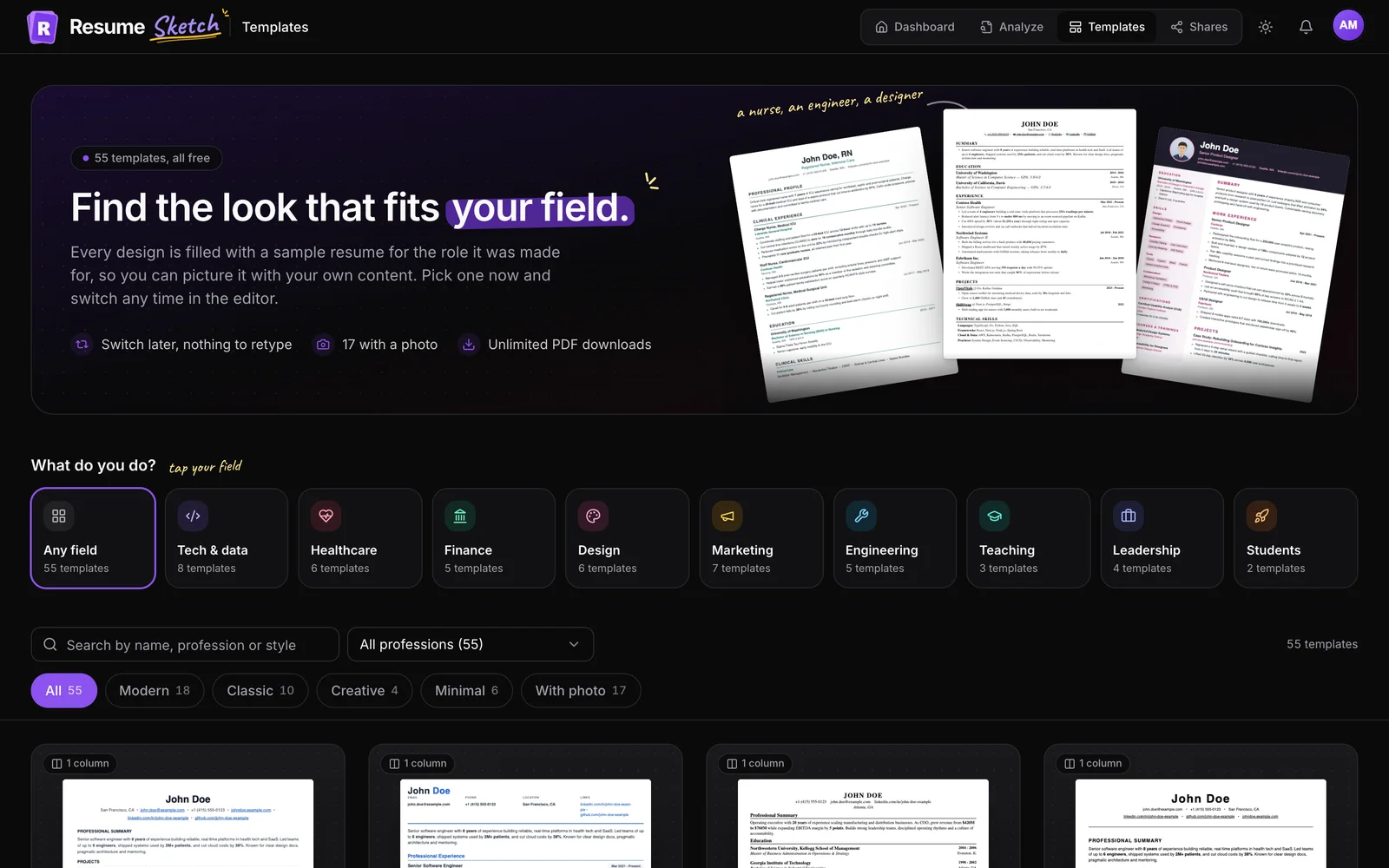
Click Design in the editor toolbar. You will see every template, with style filters (All, Modern, Classic, Creative, Minimal, With photo) and a profession filter. Click a template to switch; your content stays exactly the same, so you can try a few in seconds.
If you choose a photo template, turn on Show on resume in the Photo card under Basic info. The photo is saved to your profile, so other resumes can reuse it.
07Step 6: Download your PDF
- 1
Check the preview one last time
Read the preview top to bottom. Look for a second page that only holds two lines, inconsistent dates, and links that are cut off.
- 2
Click the download button
The download icon in the editor toolbar is labelled Download PDF. If the resume has a cover letter, it says Download resume + cover letter (PDF) and you get both files.
- 3
Check the file
The file is named after you, for example
Jane_Doe_Resume.pdf. Open it once before you send it, the same way a recruiter would.
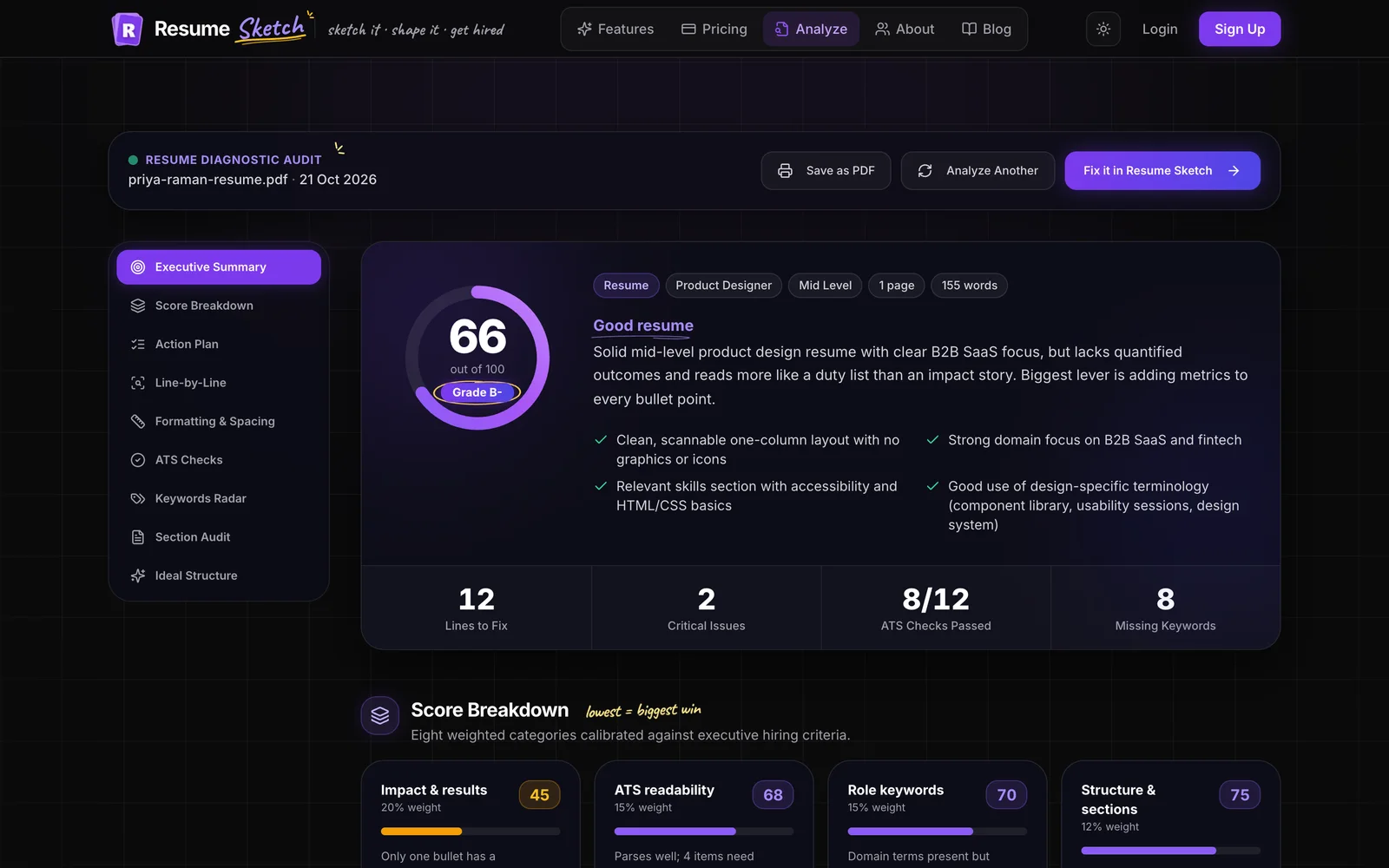
PDF downloads are unlimited on every plan, including Free. Before you apply, it is worth running the file through the free ATS resume analyzer to see how an applicant tracking system reads it.
08Common first-week mistakes
- Skipping the profile. Building every resume from a blank page means retyping the same roles again and again. Ten minutes on the profile saves hours later.
- A vague target role. "Manager" gives the AI nothing to work with. "Operations Manager, e-commerce fulfilment" does.
- Not checking the import. AI parsing is good but not perfect. Dates and job titles are the usual suspects.
- Choosing a template before the content is done. Write first, design last. A template cannot rescue weak bullets.
- One resume for every job. Keep a solid general version, then make a copy per application and tailor it.
Frequently asked questions
Do I have to fill in my profile before I can create a resume?
No. You can create a resume by importing an existing file or starting blank. The profile is optional but strongly recommended, because every resume after the first one is much faster to build from it.
Will importing my resume overwrite what is already in my profile?
No. The import only fills empty contact fields and adds new experience, projects, education and skills after your existing entries. You can delete anything you do not want afterwards.
What file types can I import?
PDF, Word, plain text, and images such as PNG, JPG or WebP. Scanned documents and photos are read with OCR. You can also paste the text directly.
Can I change the template after I have written my resume?
Yes, at any time. Open Design in the editor and click another template. Your content stays the same; only the layout and styling change.
How many resumes can I keep?
Free allows 2 resumes, Pro 8 and Max 20. The Create resume card on your dashboard shows how many you have used. You can delete an old resume to make room.