The short answer
Open Ask AI in the editor with ⌘J (Ctrl+J on Windows) or the Ask AI button. It sees your whole resume and your target job if you have added one. Ask for a specific change, and its edits appear as before-and-after previews you accept or dismiss; nothing changes until you click, and every applied change can be undone.
01What Ask AI is (and is not)
Ask AI is a chat panel inside the resume editor. Unlike a general chatbot, it already has your resume open: every section, the template, and the target job if you have linked one. You do not paste anything in. You just say what you want.
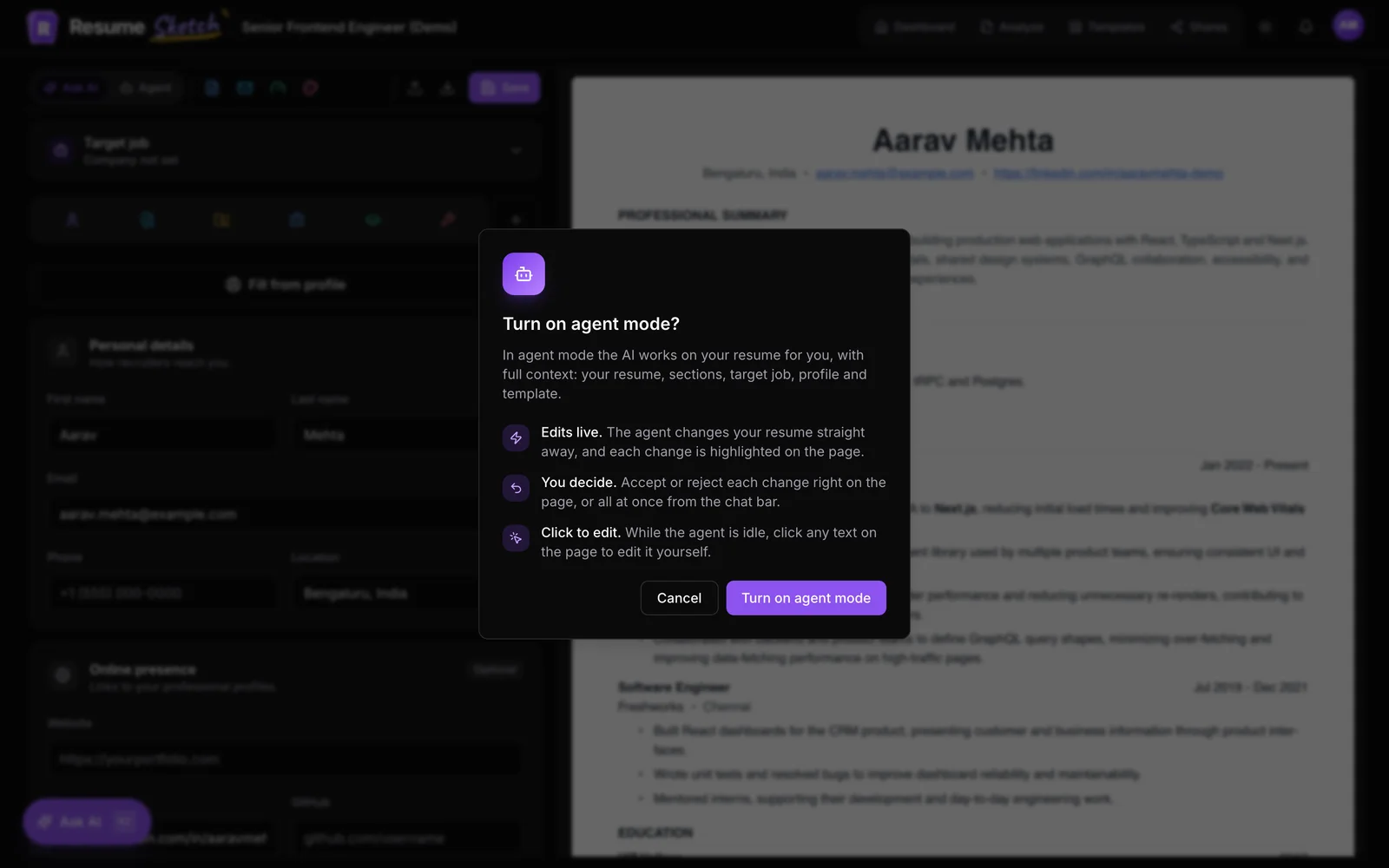
The important design choice is that Ask AI suggests. When it proposes an edit, you see a preview card with the old and new text, and you decide. If you would rather have the AI make many edits directly while you review afterwards, that is agent mode, available on Pro and Max.
| Ask AI | Agent mode | |
|---|---|---|
| How edits happen | Shown as previews; you accept each one | Made directly on the page; you accept or reject afterwards |
| Best for | Targeted fixes, questions, second opinions | Multi-step jobs across the whole resume |
| Plans | All plans, including Free | Pro and Max |
02Opening the panel
- 1
Open any resume in the editor
From your dashboard, click a resume card to open it.
- 2
Press ⌘J or Ctrl+J
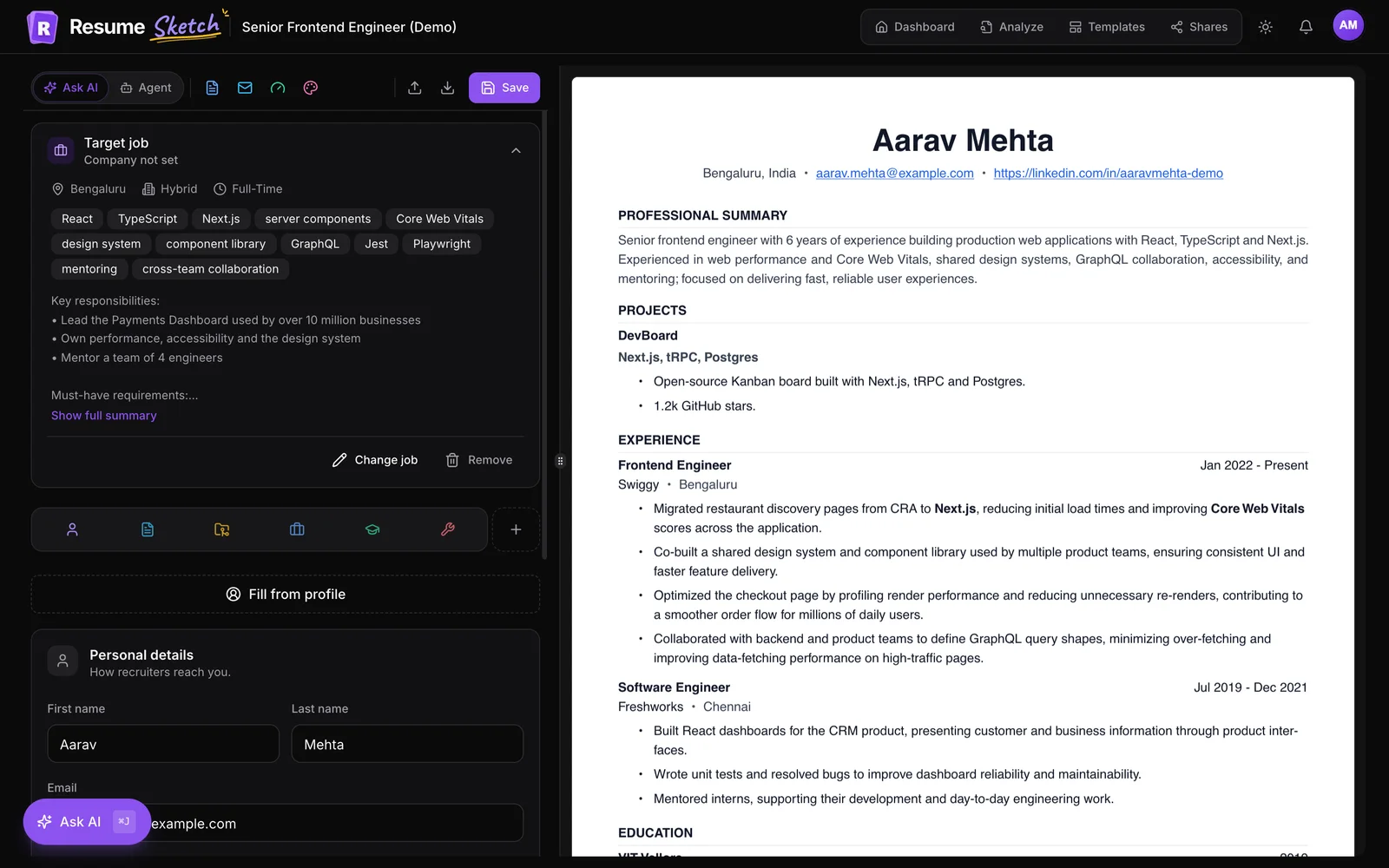
The shortcut opens and closes the panel. You can also click the Ask AI button in the bottom-left corner, or choose Ask AI in the AI mode switch at the top of the editor.
- 3
Check what it can see
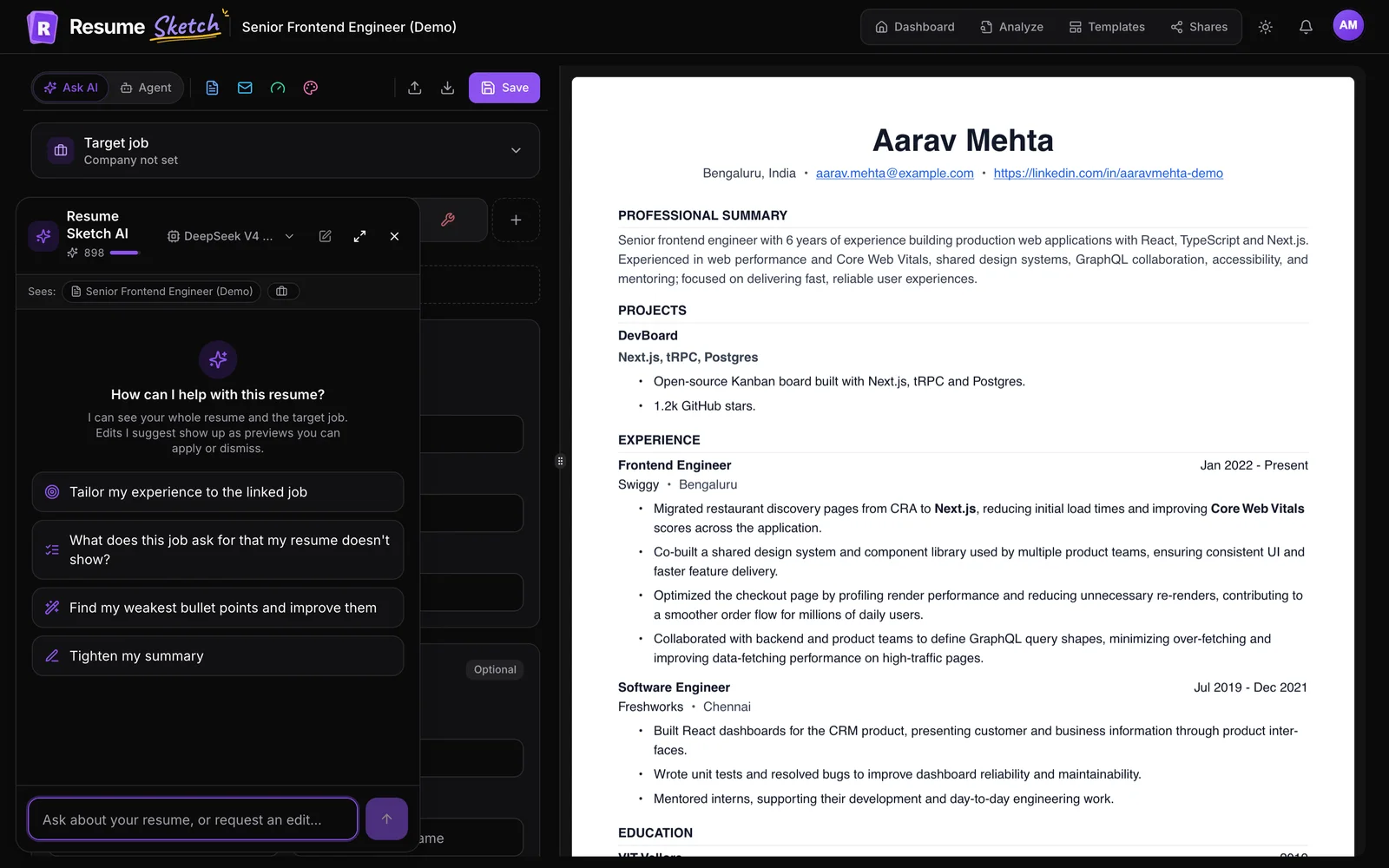
Under the header, the Sees: line shows the resume name and your target job. If it says no target job, the AI will give general advice rather than advice for a specific posting.
- 4
Start with a suggestion or type your own
A fresh chat offers starters that adapt to your resume, such as Find my weakest bullet points and improve them, Tighten my summary, or, with a target job, What does this job ask for that my resume doesn't show?
The header also holds the AI credits meter, a model picker, a New chat button and a button to expand the panel. Press Enter to send and Shift+Enter for a new line. If a reply is going the wrong way, the stop button ends it.
03Writing prompts that get useful answers
The AI already knows your resume, so you do not need long prompts. You do need clear ones. A good request names what to change, where, and any limits.
Vague
- Make my resume better.
- Fix my experience.
- Add keywords.
Specific
- Rewrite the bullets in my Acme Corp role to lead with results. Keep every number exactly as written.
- My second role reads like a job description. Turn it into four achievement bullets, max two lines each.
- Which requirements in the target job are not covered anywhere on my resume? List them before suggesting edits.
- Point to the section. "My summary", "the Northwind role", "my Skills section".
- State the constraint. "Under 60 words", "keep it to one page", "no new tools I have not used".
- Give it facts it cannot know. "I managed a budget of about $200k and a team of five" turns a vague bullet into a strong one.
- Ask questions, too. "Critique this like a recruiter hiring for a product analyst" is often more useful than an immediate rewrite.
04Rewriting bullet points
You can rewrite bullets in two ways: in the chat, or right next to the bullet in the form. The inline route is quicker for one point at a time.
- 1
Click the sparkle next to a bullet
In Work Experience or Projects, each bullet has a sparkle button. It opens Improve this point.
- 2
Pick a quick instruction or write your own
Presets include More concise, Stronger action verbs, Match the job keywords, Emphasise leadership, Emphasise results and Simpler language. Add your own note, such as "mention the budget I managed".
- 3
Choose one of three rewrites
You get three versions to compare. Facts and numbers stay as you wrote them. You can edit the one you like before clicking Replace.
To draft new bullets for a role, click Write with AI under the list. Choose how many points you want (one to six), and the AI drafts them from the job title, the tools you listed and your target job. Anything shown in [brackets] marks a spot where a real number would help: fill it in or delete it.
Before
- Worked on the onboarding flow and improved it.
After
- Redesigned the onboarding flow with product and design, raising week-one activation from 38% to 52%.
05Writing or tightening your summary
In the Summary tab, click Write with AI if it is empty or Improve if you already have one. Presets include Shorter, More confident, Focus on the target role, Highlight specialisms and Career change angle. As with bullets, you pick from three options.
Customer success manager with six years in B2B SaaS, most recently owning a $3M book of mid-market accounts. Known for cutting churn through structured onboarding and quarterly business reviews. Looking to bring the same approach to a scaling product team.
A word counter under the summary turns amber past 90 words. Aim for under 80. In the chat, "Tighten my summary to three sentences and lead with my specialism" works well.
06Using your target job
Ask AI is at its best when it knows the job. Add one in the Target job card at the top of the editor (paste the posting and let AI read it). From then on, the chat shows the job in its Sees: line and the starters change to job-specific ones, such as tailoring your experience to that role.
- "What does this job ask for that my resume doesn't show?" Start here. It gives you a gap list before any rewriting.
- "Reorder the bullets in my latest role so the ones closest to this job come first."
- "Use the job's wording for skills I genuinely have, but don't add anything I haven't done."
The full workflow, including keeping a separate copy per application, is in the tailoring guide.
07Reviewing and undoing suggestions
Each suggestion arrives as a card labelled with the section it touches. Changed words are highlighted so you can see exactly what moved.
- Accept applies it to your resume. Dismiss discards it.
- When a suggestion covers several sections, each section has its own Apply button, plus Apply all and Dismiss all.
- After you apply a change, a toast offers Undo. Applied changes go through the editor's undo history.
- Your chat is kept per resume in this browser. New chat clears the conversation; changes you already applied stay.
08Credits, models and common mistakes
Ask AI uses AI credits from your plan; the meter in the panel header shows what is left. Free includes 250 credits a month, Pro 1,000 and Max more. You can also add your own API key in Profile → AI settings, and requests with your key do not use credits. Details are in the credits and plans guide.
- Asking for everything at once. One section per request gives sharper results and easier review.
- Accepting without reading. Check names, dates and numbers every time.
- Forgetting the target job. Without it, advice stays generic.
- Keyword stuffing. If a suggestion adds a skill you do not have, dismiss it.
Frequently asked questions
What is the keyboard shortcut for Ask AI?
⌘J on Mac or Ctrl+J on Windows and Linux. It opens and closes the panel in the editor.
Does Ask AI change my resume without asking?
No. Every edit appears as a preview that you accept or dismiss. Accepted changes can be undone from the toast that appears, or through the editor's undo history.
Is Ask AI available on the Free plan?
Yes. Ask AI works on every plan and uses AI credits. Free includes 250 credits a month. Agent mode, which edits directly, is the part reserved for Pro and Max.
Can Ask AI see my target job?
Yes, if you have added one to the resume. The Sees: line under the panel header shows the job; if it says no target job, add one from the Target job card at the top of the editor.
Is my chat saved?
The conversation is kept for each resume in your current browser, so it is there when you come back. Starting a new chat clears it; changes you already applied stay on the resume.