The short answer
Pick a template on the Templates page or under Design in the editor, filtering by field and style; single-column templates tagged ATS-safe are the safest choice. Use a photo template only where photos are the norm for your region or industry. Drag section tabs to reorder sections (the order carries over to every template), drag skills to reorder them, add sections like Certifications or Languages from the plus button, and type titles such as Dr. or CA straight into the name fields.
01Choosing a template
A template has two jobs: get read correctly by software, and get read quickly by a person. Everything else is taste. Resume Sketch has a large library, from plain ATS-focused layouts to role-based designs for nurses, chartered accountants, engineers, teachers and more.
- 1
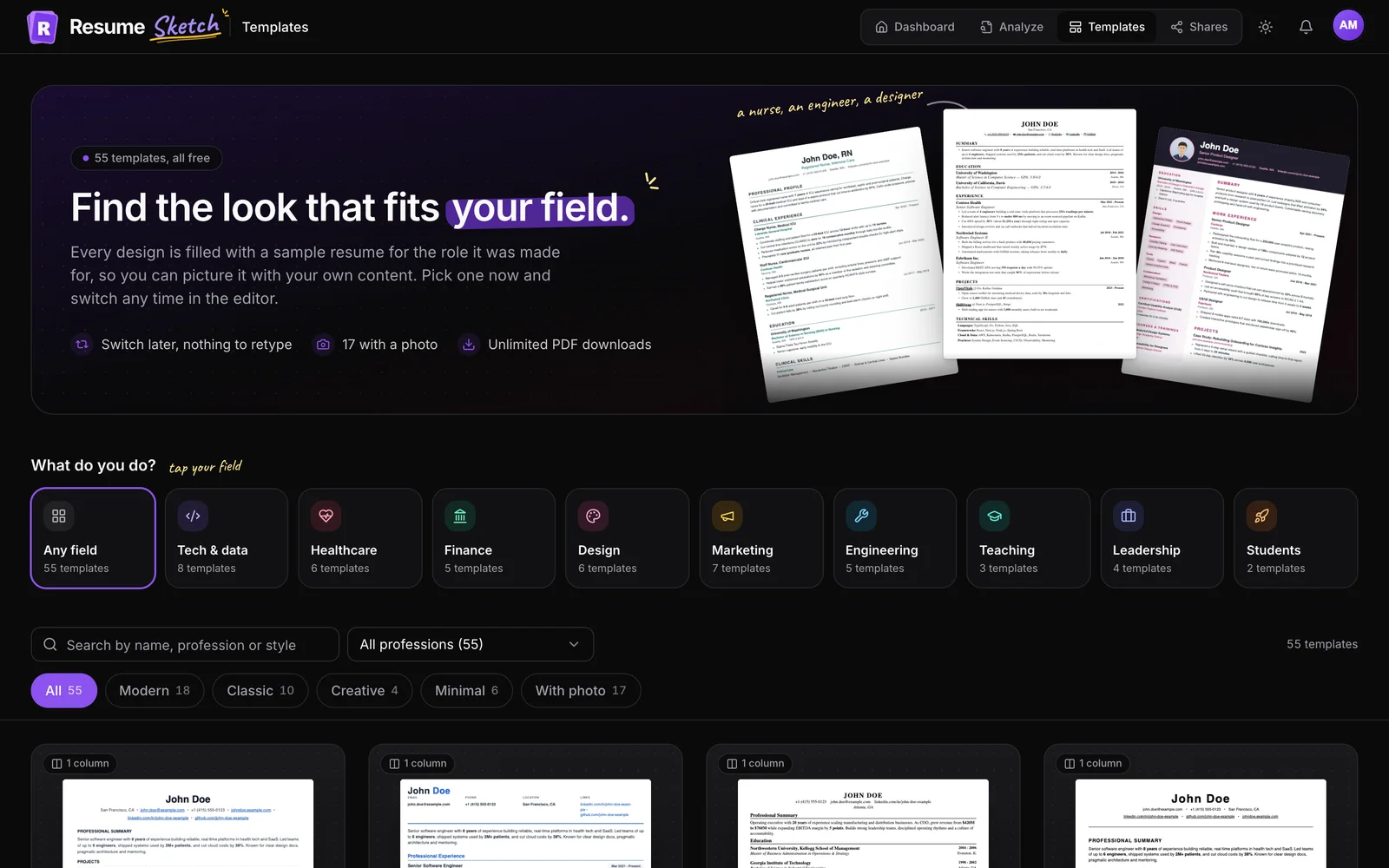
Open the Templates page
Go to Templates. Each preview is filled with a sample resume for the role it was designed for, so a nursing template shows a nurse's resume and the CA template shows a chartered accountant's.
- 2
Filter to your field
Pick your field (Tech & data, Healthcare, Finance, Design and so on), filter by style (Modern, Classic, Creative, Minimal or With photo), or search by name, profession or style.
- 3
Check the tags and preview
Cards are tagged with their style, Photo if they include one, and ATS-safe where the layout is built for tracking systems. Click a card to preview it with its features and the fields it suits.
- 4
Use it
Use this takes you to your dashboard and opens the create-resume dialog. Inside the editor you can switch templates at any time under Design.
| If you are… | Consider | Why |
|---|---|---|
| Applying through large job portals | Default Professional, Civic Service | Plain single column that parses cleanly. |
| A software engineer | Software Engineer | The classic LaTeX-style layout many engineers use. |
| A chartered accountant or auditor | CA Professional, Audit Pro, Ledger Finance | Built for finance, with room for certifications. |
| A student or fresher | Fresher Start, Intern Launch | Education and projects come first. |
| In design or marketing | Creative Modern, Studio Mono, Brand Story | More personality, still structured. |
02Photo or no photo?
This depends far more on where and in which industry you apply than on design. Norms vary, so check what is usual for the specific country and company.
| Situation | General guidance |
|---|---|
| US, UK, Canada, Ireland, Australia | Usually leave the photo off. Many employers prefer not to receive one, partly to avoid bias. |
| Much of continental Europe, the Middle East and parts of Asia | A professional photo is common and sometimes expected. |
| Client-facing roles: hospitality, real estate, some sales | A photo can help where personal presentation is part of the job. |
| Large online portals in any region | Prefer no photo; images add nothing an ATS can read. |
If you use one, choose a photo template (filter With photo), then open Basic info in the editor. In the Photo card, upload your photo and turn on Show on resume. The photo is saved to your profile, so your other resumes can reuse it, and it only appears on photo templates.
03The Design panel in the editor
Click Design in the editor toolbar to open the template picker beside your live preview. The panel tells you which template you are using; pick another to switch instantly. Your content stays the same.
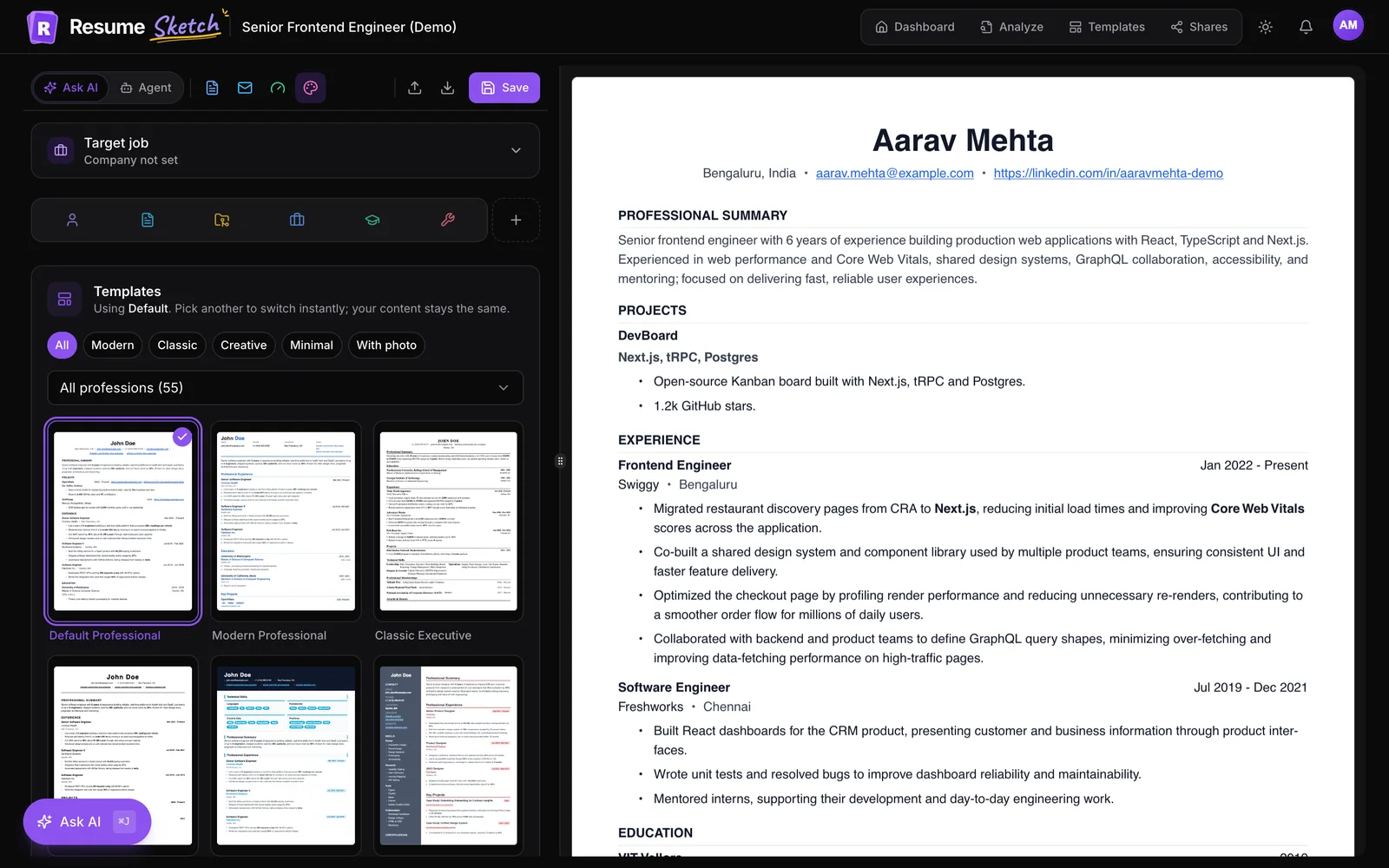
- Style chips: All, Modern, Classic, Creative, Minimal, With photo.
- Profession filter: narrows the list to templates designed for your field.
- Clear filters: appears when nothing matches.
Each template comes with its own typography, colours and spacing, designed to work together, so the main design choice is the template itself. The other choices are structural: section order, section titles, and what you show or hide. Those are covered next. On Pro and Max, you can also ask agent mode to pick the best template for your field and keep the resume to one page.
04Reordering, renaming and hiding sections
The tabs across the top of the editor are your sections in the order they print. Basic info is always first; everything after it can move.
- 1
Drag a tab
Drag any section tab left or right with your mouse, or press and hold on a touch screen. The preview updates as soon as you drop it.
- 2
Or use the move buttons
Inside each section, the toolbar has Move earlier and Move later buttons, which also work from the keyboard.
- 3
Rename or hide
Type a new name in the section title field (for example, Clinical Skills instead of Skills). Hide from resume keeps the content but leaves it off the page; Show on resume brings it back.
| Your situation | Suggested order after Basic info |
|---|---|
| Experienced professional | Summary, Work Experience, Skills, Education |
| Student or recent graduate | Education, Projects, Skills, Work Experience |
| Career changer | Summary, Skills, Projects, Work Experience, Education |
| Academic or medical CV | Education, Work Experience, Publications, Certifications |
05Reordering skills
Recruiters read skills left to right and top to bottom, so put the ones the job cares about first.
- Move a whole category by dragging its handle. For example, put Clinical above Software for a nursing role.
- Move a single skill by dragging its chip within the category. On touch screens, press and hold; on a keyboard, focus the chip, press Space, use the arrow keys, then press Space again.
- Add skills by typing and pressing Enter, or paste a comma-separated list.
- Find missing skills suggests skills your experience already shows but your list leaves out, and checks against your target job if you have one.
06Adding certifications, languages and custom sections
- 1
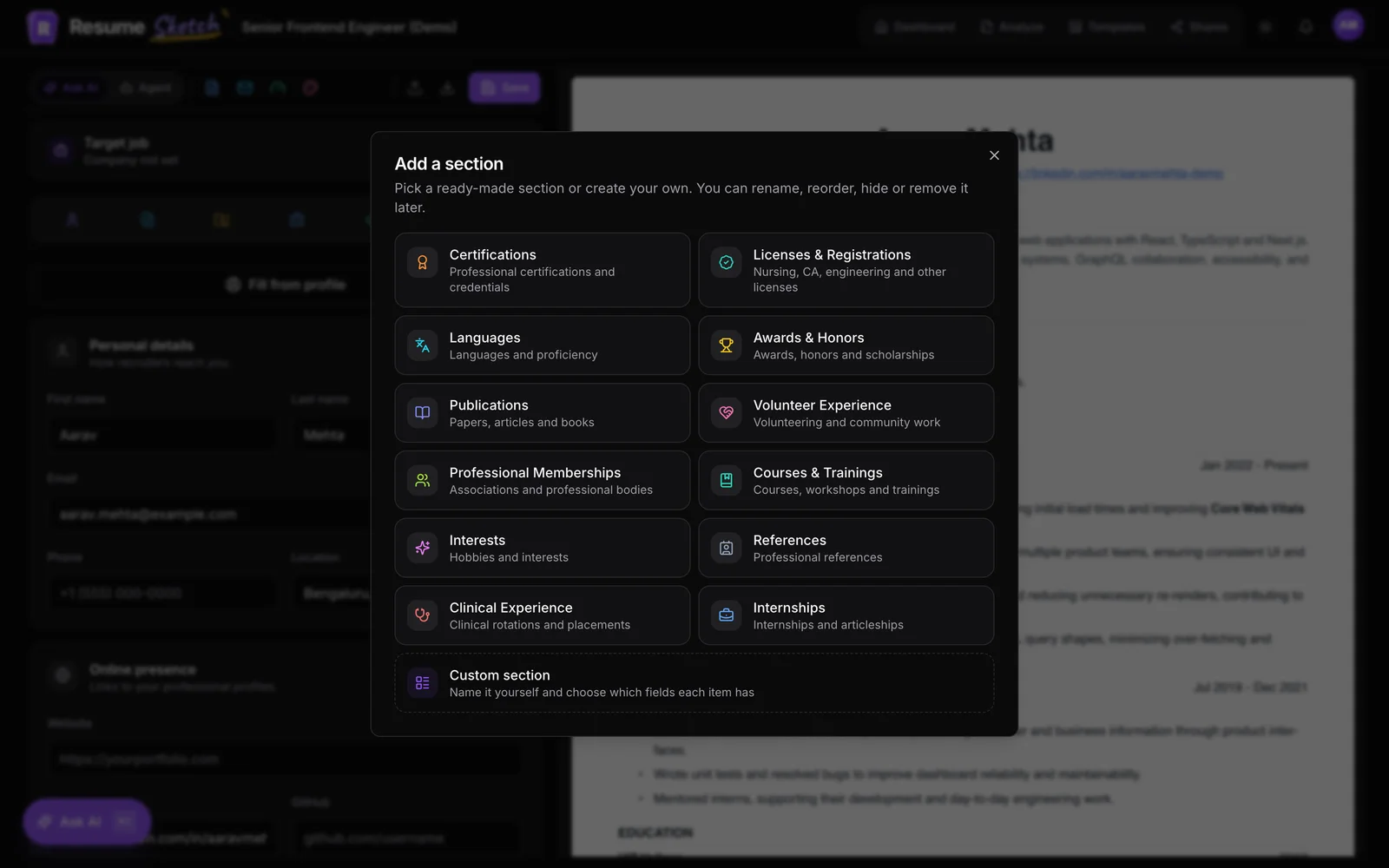
Click the plus next to the section tabs
It opens Add a section.
- 2
Pick a ready-made section
Options include Certifications, Licenses & Registrations, Languages, Awards & Honors, Publications, Volunteer Experience, Professional Memberships, Courses & Trainings, Interests, References, Clinical Experience and Internships.
- 3
Or build your own
Choose Custom section, give it a title (such as Hackathons, Patents or Conferences) and choose which fields each item has: title, subtitle, date range, location, link, description and bullet points.
New sections join the tab bar, so you can drag them into place like any other. If you add the same sections to your profile, they can come across automatically when you create a resume from it.
07Professional titles like Dr., CA or RN
Names are printed exactly as you type them, so titles and post-nominals go straight into the name fields in Basic info.
| You want | First name | Last name |
|---|---|---|
| Dr. Priya Sharma | Dr. Priya | Sharma |
| CA Rohan Mehta | CA Rohan | Mehta |
| Capt. Alex Morgan | Capt. Alex | Morgan |
| Maria Lopez, RN | Maria | Lopez, RN |
08Common design mistakes
- Choosing on looks alone. A striking two-column design can hurt you on a large job portal.
- A photo by default. Decide by region and industry, not by template.
- Leaving default section order. Lead with your strongest section for this job.
- Too many extra sections. Interests and references rarely earn their space on a one-page resume.
- Inconsistent titles. "Dr." on the resume and no title on LinkedIn looks careless.
Frequently asked questions
Will I lose my content if I switch templates?
No. Switching templates under Design changes only the layout and styling. Your content, section order and added sections stay the same.
Does section order apply to every template?
Yes. Each template starts with its own default order, but once you drag sections into your order, every template follows it. On two-column templates the order applies within each column.
Which templates are ATS-friendly?
Look for the ATS-safe tag on the Templates page. Single-column layouts such as Default Professional, Civic Service and Software Engineer are the safest choices for large job portals.
Should I include a photo on my resume?
In the US, UK, Canada, Ireland and Australia, usually not. In much of continental Europe, the Middle East and parts of Asia a professional photo is common. Check the norms for the country and company you are applying to.
How do I add a title like Dr. or CA?
Type it into the First name field in Basic info, for example Dr. Priya. Post-nominals like RN or CPA go after your last name, for example Lopez, RN.