The short answer
Add https://app.resumesketch.com/api/mcp as a connector in ChatGPT (Settings → Apps & Connectors → Developer mode → Create, with OAuth) or in Claude (Settings → Connectors → Add custom connector, then Connect), and press Allow. Your assistant can then create, edit, tailor and share your resumes by chat, changes appear in Resume Sketch right away, and no Resume Sketch credits are used. Disconnect any time from the same Profile tab.
01What the connector does
Resume Sketch has a connector for AI assistants, built on the Model Context Protocol (MCP), the open standard that ChatGPT, Claude and many other AI apps use to talk to outside tools. Once connected, your assistant can work directly with your Resume Sketch account: read your profile, create a resume, rewrite bullets, change the template, write a cover letter or get you a share link.
The work happens in your real account. Ask Claude to add a certification and it appears in the editor; ask ChatGPT to switch templates and the live preview changes. There is no copy-pasting between a chat window and a resume builder.
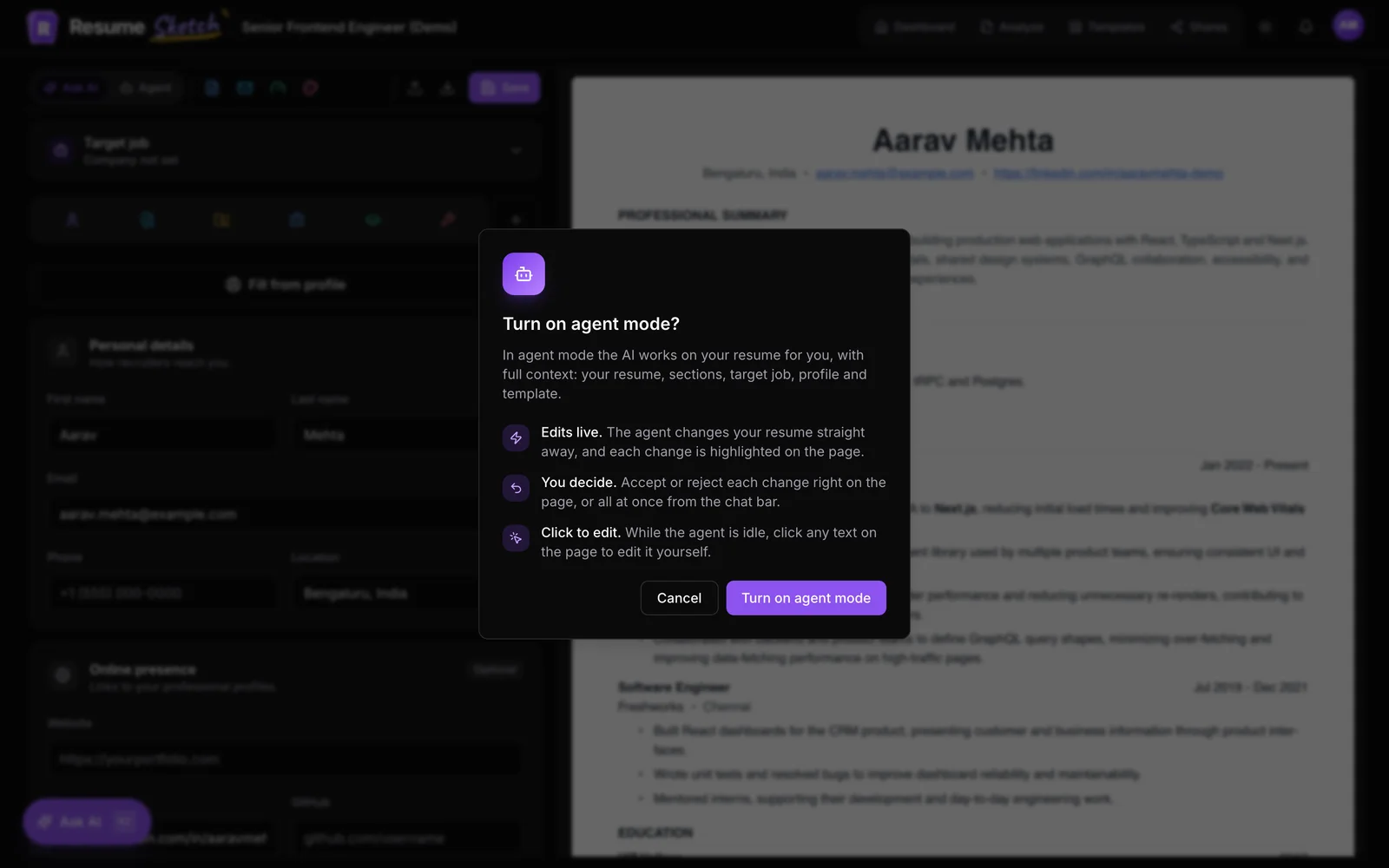
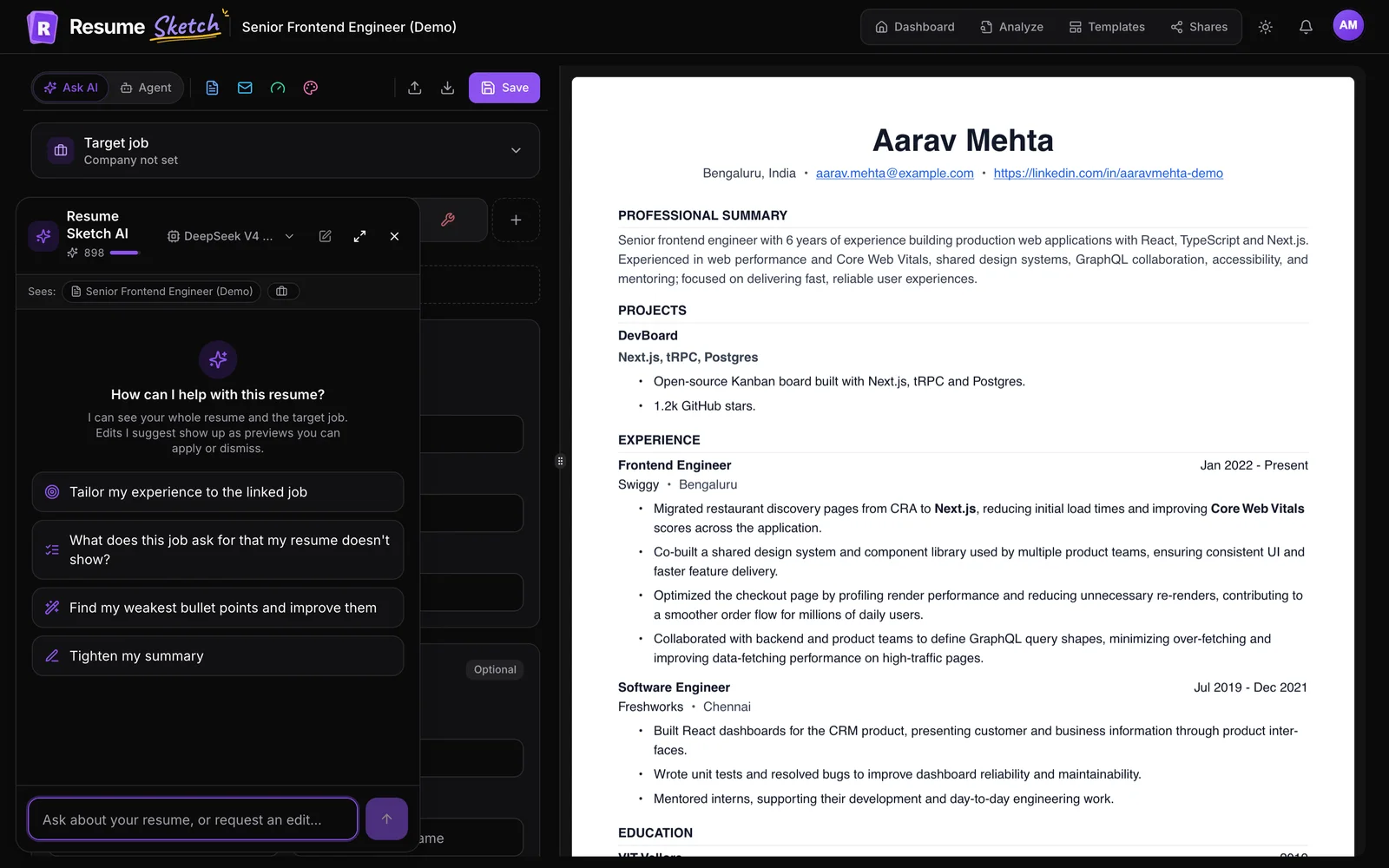
It is a good fit if you already spend your day in an AI assistant, if you want to paste a long job post and talk through how to position yourself, or if you like reviewing changes conversationally. The in-app Ask AI panel and agent mode do similar work without leaving the editor.
02Step 1: Find your server URL
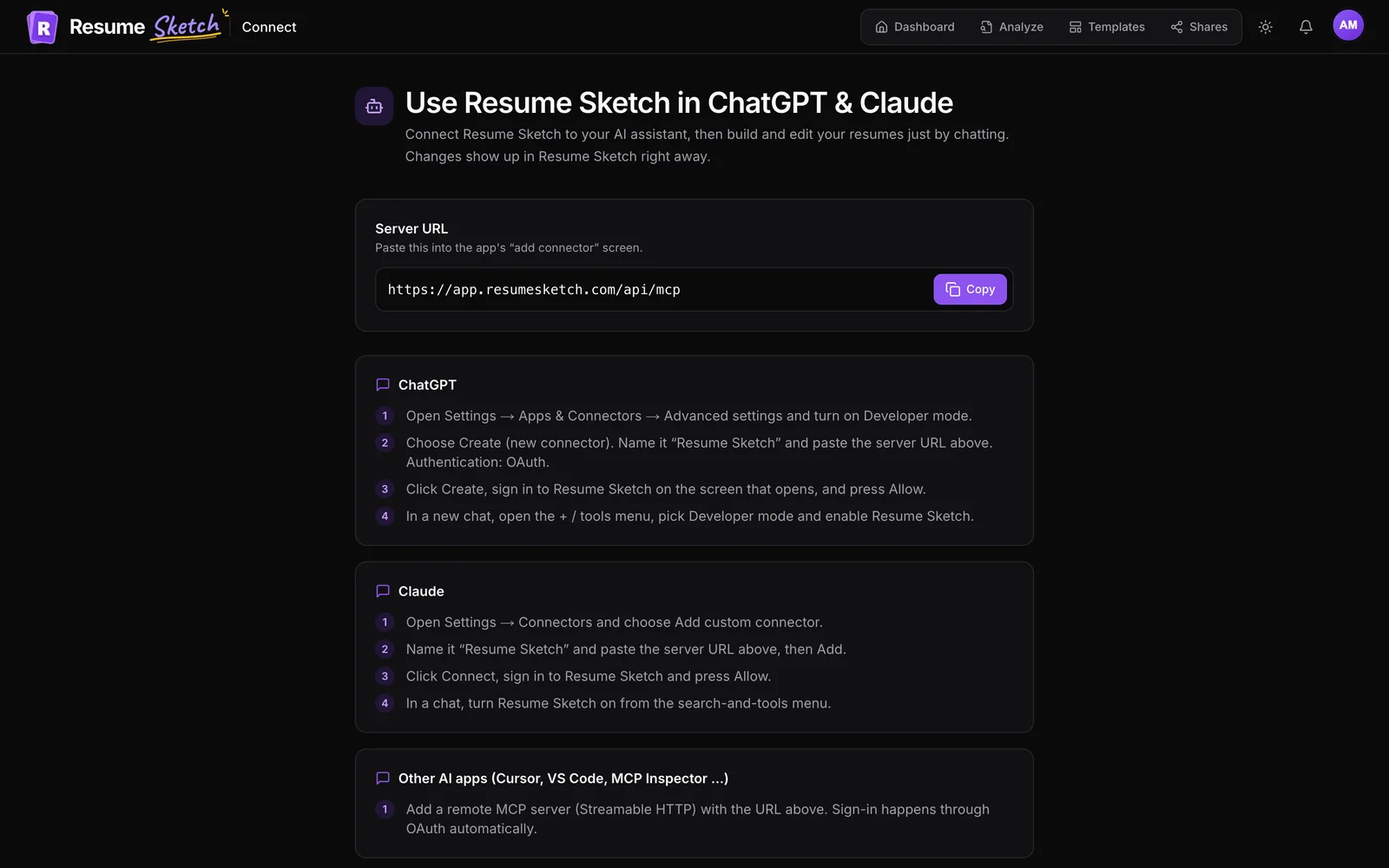
Every connection starts with the Resume Sketch server URL. It is the same for everyone: your own account is chosen when you sign in during the connection, so nothing in the URL is personal.
Resume Sketch server URL
https://app.resumesketch.com/api/mcpAuthentication: OAuth. No API key or client secret is needed; ChatGPT and Claude register themselves and send you to sign in.
You can also copy it inside the app, in Profile → ChatGPT & Claude, where you'll later see and disconnect the apps you've connected.
03Step 2a: Connect ChatGPT
- 1
Turn on Developer mode
In ChatGPT, open Settings → Apps & Connectors → Advanced settings and turn on Developer mode.
- 2
Create the connector
Choose Create to add a new connector. Name it Resume Sketch, paste the server URL, and set Authentication to OAuth.
- 3
Sign in and allow
Click Create. A Resume Sketch screen opens: sign in if needed, check the account shown, and press Allow.
- 4
Turn it on in a chat
Start a new chat, open the + / tools menu, pick Developer mode and enable Resume Sketch.
04Step 2b: Connect Claude
- 1
Add a custom connector
In Claude, open Settings → Connectors and choose Add custom connector.
- 2
Paste the URL
Name it Resume Sketch, paste the server URL and click Add.
- 3
Connect and allow
Click Connect, sign in to Resume Sketch and press Allow.
- 4
Enable it in a chat
In any chat, turn Resume Sketch on from the search-and-tools menu.
The approval screen tells you exactly what you are granting. The assistant will be able to see your resumes, profile and templates; create, edit, duplicate and delete resumes when you ask it to; and create and turn off share links. It can't see your password, payment details or Gmail.
05What you can ask your assistant
Talk to it like you would to a career coach who also has edit access to your resume. A few prompts to start with:
- "Create a resume for a senior product manager role from my profile, using a modern template."
- "Tailor my Software Engineer resume to this job post:" followed by the posting.
- "Rewrite every bullet in my latest resume to start with a strong verb and include a number."
- "Add a Certifications section with AWS Solutions Architect (2024)."
- "Make a copy of my resume for a data analyst role and get me a share link."
- "Write a cover letter for this resume aimed at the job I just pasted, and keep it under 300 words."
- "Which of my templates work best for a finance role? Switch my CA resume to the most conservative one."
| Area | What the assistant can do |
|---|---|
| Resumes | List and search your resumes, read one in full, create one (blank or from your profile), duplicate it, or delete it after you confirm |
| Content | Update contact details and summary; add, edit, reorder or remove experience, projects and education; replace skills |
| Sections | Add, update, remove and reorder extra sections such as certifications or languages |
| Design | List templates and switch a resume's template |
| Cover letter | Write or replace the resume's cover letter, or delete it |
| Sharing | List your share links with view counts, create a link, or turn one off and on |
06Tips for working this way
- Fill in your profile first. The assistant can read your master profile, so the richer it is, the better a new resume will be.
- Name the resume you mean. If you have several, say "my Data Analyst resume" rather than "my resume".
- Duplicate before big changes. Ask for a copy, then tailor the copy. Your original stays intact.
- Review in the app. Keep the editor open in another tab; changes show up there right away, in the template you will actually send.
- Finish with an ATS check. Run the result through the ATS analyzer before applying.
- Mind your limits. Creating a resume or a share link counts toward your plan's limits, same as in the app.
07How to disconnect
- 1
Open Profile → ChatGPT & Claude
Scroll to Connected AI apps. Each connected app is listed with when it was connected and last used. The same list is at the bottom of the setup guide page.
- 2
Click Disconnect
Click Disconnect next to the app. Access stops immediately: the app can no longer read or edit your resumes.
- 3
Tidy up in the AI app (optional)
You can also remove the connector from ChatGPT's or Claude's own settings so it no longer appears in your tools menu.
Frequently asked questions
Does using Resume Sketch in ChatGPT or Claude use my AI credits?
No. The chat app's own AI does the writing, so Resume Sketch doesn't charge credits for it. Your plan's limits on resumes and live share links still apply.
Where do I find the server URL?
It is https://app.resumesketch.com/api/mcp, the same for everyone, with OAuth as the authentication method. You can also copy it from Profile → ChatGPT & Claude in the app.
Can the assistant see my password, payments or Gmail?
No. Connected apps can only reach your resumes, profile, templates and share links. They never see your password, payment details or Gmail.
Will changes made in ChatGPT or Claude show up in Resume Sketch?
Yes, right away. Open the resume in the editor to review the changes in its template.
Can the assistant delete my resumes?
Only when you ask. The connector instructs assistants to delete a resume only after you have explicitly confirmed which one. Duplicate important resumes before large edits if you want an extra safety net.
How do I disconnect?
Go to Profile → ChatGPT & Claude and click Disconnect next to the app under Connected AI apps. Access stops immediately.