The short answer
Go to Shares in Resume Sketch, click Share a resume and choose Create link next to the resume you want to send. Anyone with the link sees the latest saved version and can download it as a PDF, while you see total views, when and from where it was opened, and get notifications. You can disable or delete a link at any time; Free includes 1 live link, Pro 4 and Max 20.
02Create a share link, step by step
- 1
Open Shares
Click Shares in the top navigation, or the Share Resumes button on your dashboard. The page is titled Shared links.
- 2
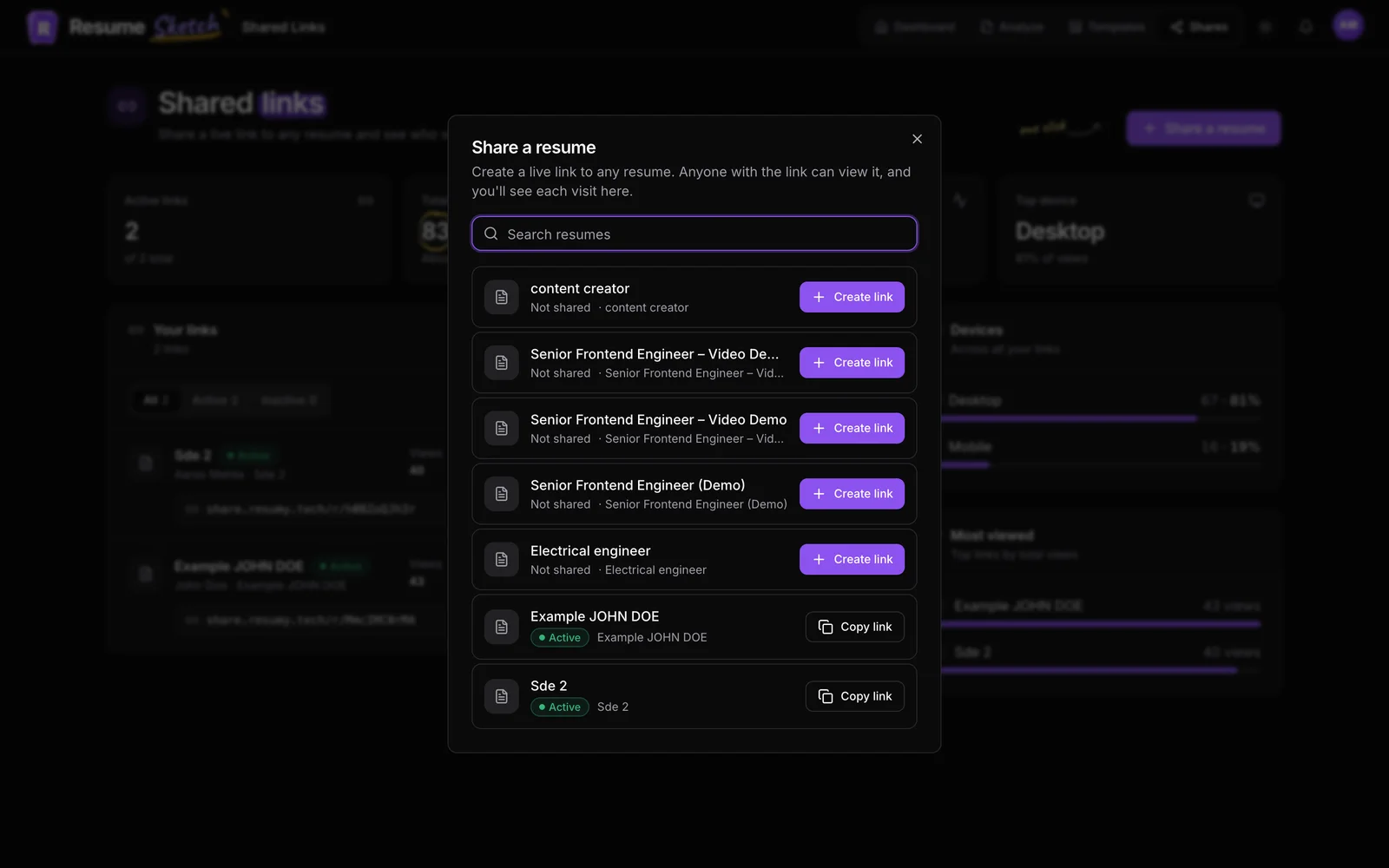
Click Share a resume
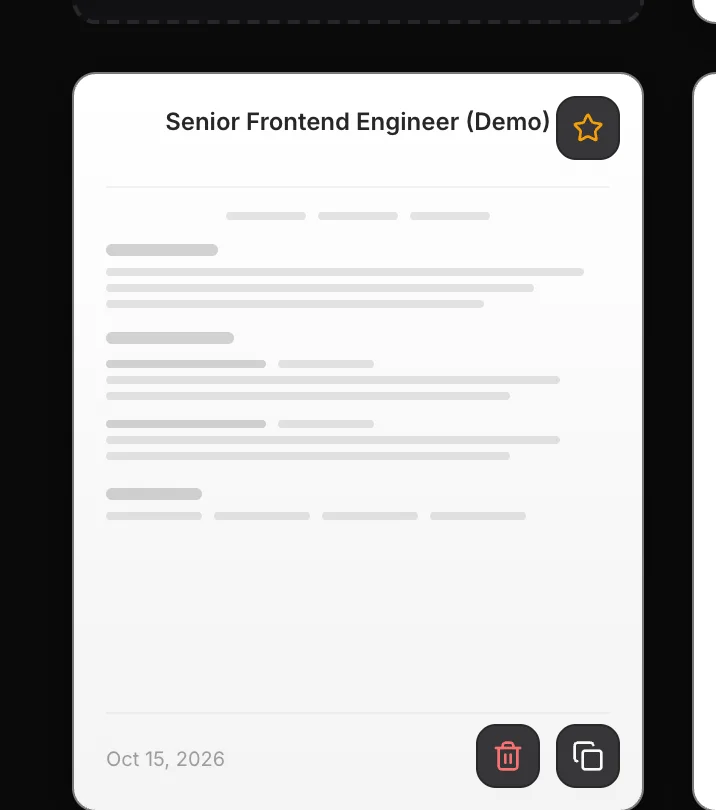
The Share a resume dialog lists all your resumes. Ones that aren't shared yet are shown first and marked Not shared. If you have more than five resumes, a search box helps you find the right one.
- 3
Create the link
Click Create link next to the resume. You will see Share link created, and the button turns into Copy link.
- 4
Copy and paste it
Click Copy link and paste it wherever you need it. Links look like
share.resumesketch.com/r/…, short enough for any message. - 5
Check it yourself
Open the link once from the row's menu (Open link) to see exactly what a recruiter will see before you send it.
03What viewers see
Your link opens a clean page built around one thing: your resume. Viewers don't need an account and don't see anything else from your Resume Sketch account.
- A header with your name and the resume's target role.
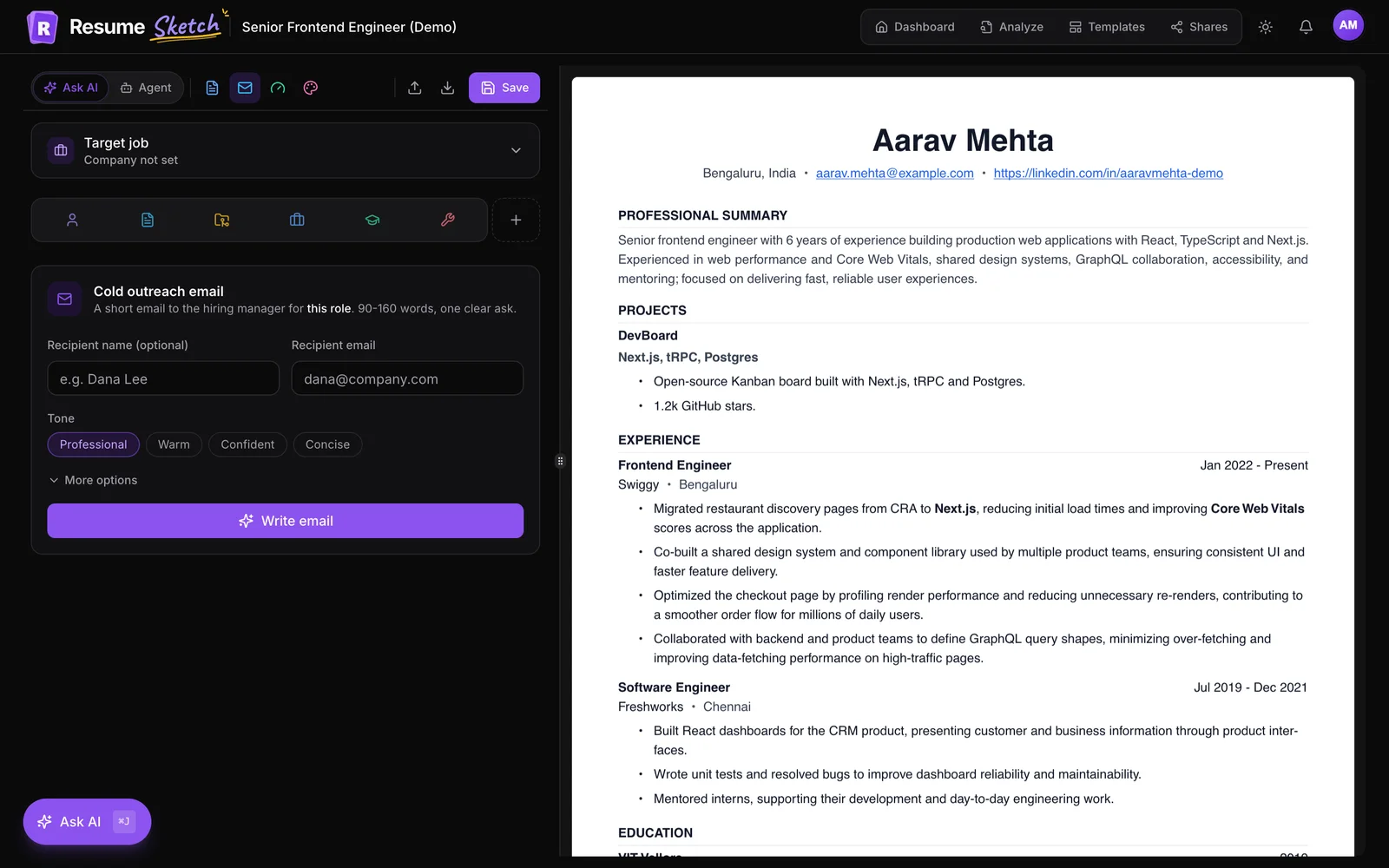
- Your resume rendered in its template, exactly as it prints, with zoom controls for reading on any screen.
- Download, which saves the resume as a PDF named after you.
- Share, which copies the link so they can forward it to a colleague.
- A light and dark theme switch for comfortable reading.
- A small footer with the view count and a note that the resume was created with Resume Sketch.
Only the resume is shown. Your cover letter, other resumes, AI chats and account details are never part of a share link. If a link is disabled or deleted, the page simply isn't found.
04Views, analytics and notifications
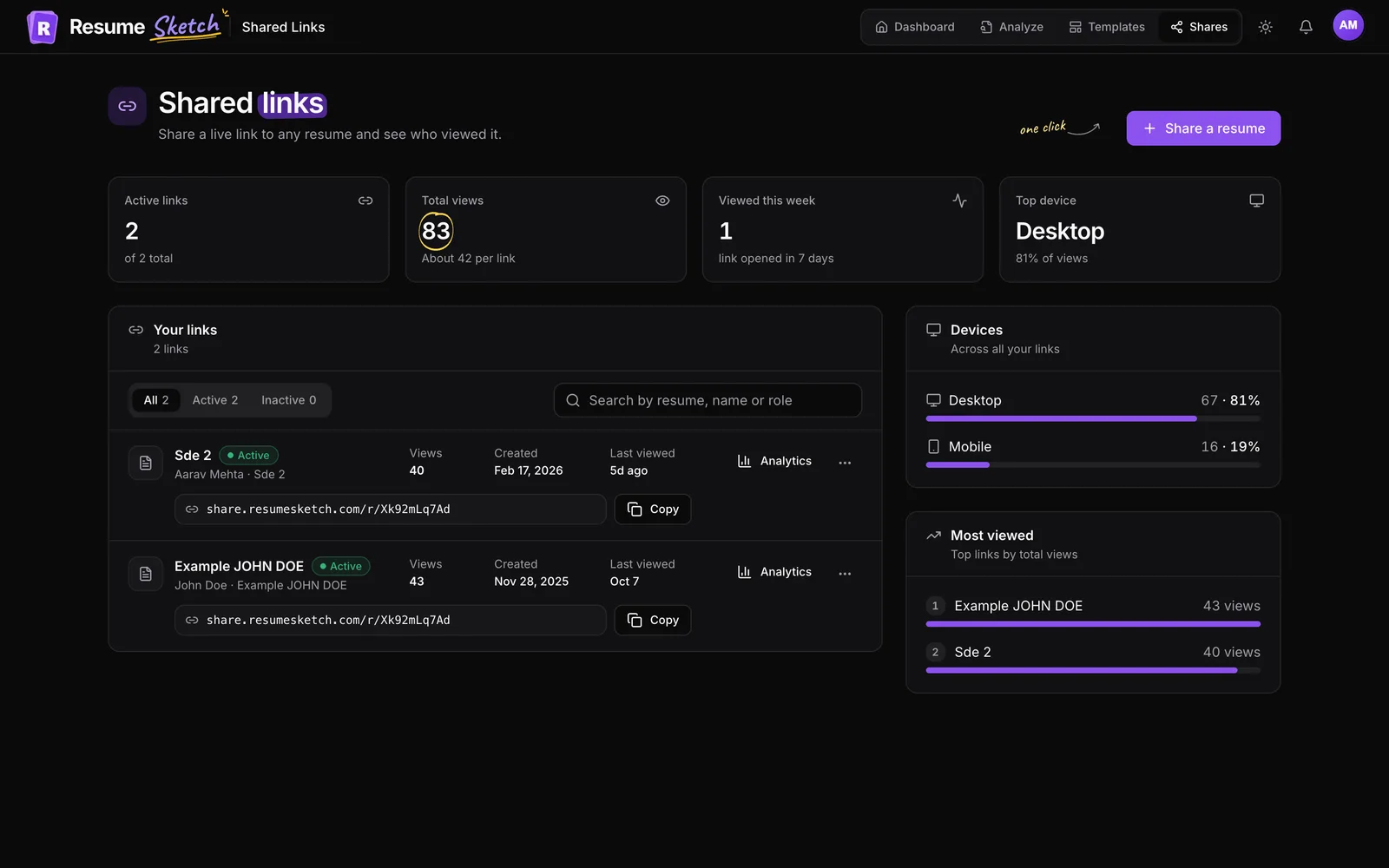
Once you have at least one link, the Shares page becomes a small dashboard. Four tiles sit at the top: Active links, Total views, Viewed this week and Top device. Below them is the list of your links, with a Devices breakdown across all links and a Most viewed ranking alongside.
Analytics for a single link
Open a link's menu and choose View analytics. A side panel shows Who opened this link, when, and from where: total views, when it was last viewed and when you created it, plus a log of individual visits.
| Column | What it tells you |
|---|---|
| When | The time of the visit |
| Location | The country the visit came from |
| Device | Desktop, mobile or tablet |
| Browser | The browser (and operating system) used to open the link |
| Source | The site or app the visit came from, when the browser reports it |
Repeat visits from the same device within a few hours count once, so a recruiter who refreshes the page doesn't inflate your numbers.
Getting notified
When someone opens one of your links, a notification appears under the bell in the app header, showing the country and browser it was viewed from. Click Enable push in the notifications panel if you want browser push notifications too, so you hear about views even when Resume Sketch isn't open. View all shared links takes you back to the Shares page.
05Turn links off, back on, or delete them
Every link has a menu (the three dots on its row) with Open link, Copy link, View analytics, and two ways to stop sharing.
Disable link
- People who open the link can no longer see your resume
- You can enable it again at any time
- The URL stays the same, so links you already sent work again
- Its view history is kept
Delete link
- People who open the link can no longer see your resume
- It can't be undone
- If you share the resume again later, you get a new link
- Use it when you never want that URL to work again
Each link shows a status badge: Active, Disabled or Expired. Disabling is the right choice most of the time, for example when you accept an offer and want to pause your search without losing the link you put on your portfolio.
06How many live links you can have
| Plan | Live share links at once |
|---|---|
| Free | 1 |
| Pro | 4 |
| Max | 20 |
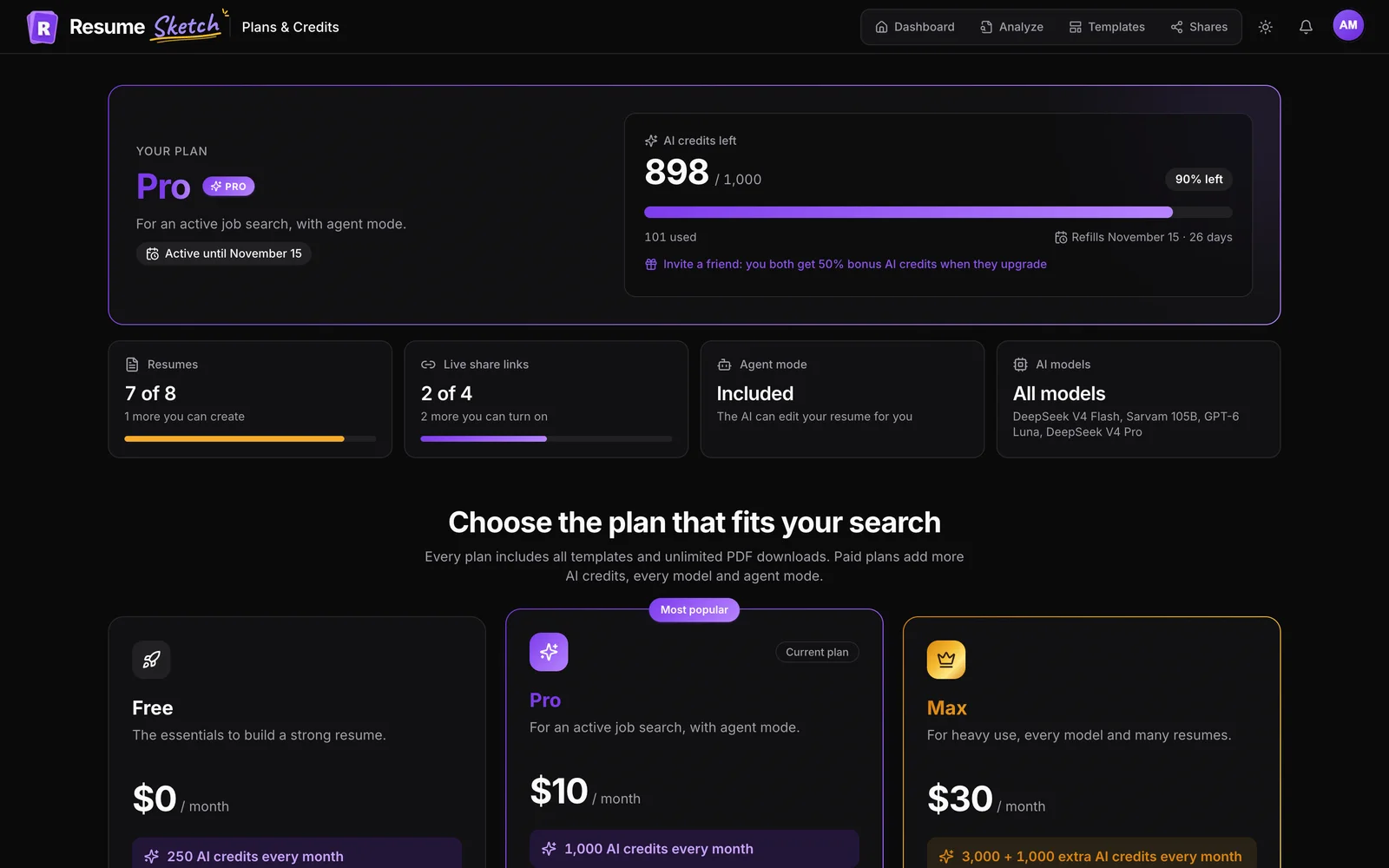
The limit counts active links only. Disabled links don't count, so on Free you can keep links for several resumes and switch which one is live. If you try to create or enable a link above your limit, Resume Sketch tells you to turn one off or upgrade. You can see how many you are using under Live share links on the Plans & credits page.
07Tips and common mistakes
- Sharing a half-finished resume. Because the link is live, the viewer sees whatever is saved right now. Finish edits before you send, or share a separate copy.
- One link for every job. If you tailor resumes per role, share the tailored version for each application. On Pro and Max you can keep several live at once.
- Reading too much into zero views. Some people download PDFs from email attachments instead. A missing view isn't a rejection.
- Leaving old links live. Once a search is over, disable the links you no longer need. It also frees up your plan's live-link slots.
- Deleting when you meant to pause. Delete is permanent. Disable keeps the URL so you can switch it back on later.
- Not checking the mobile view. Many recruiters open links on their phone. Open your link on yours once.
Frequently asked questions
Does the link update when I edit my resume?
Yes. A share link always shows the latest saved version of the resume. Remember to click Save in the editor after making changes.
Can viewers download my resume?
Yes. The share page has a Download button that saves the resume as a PDF. If you don't want a resume to be downloadable, don't share it as a link.
Can I see who exactly viewed my resume?
You see each visit's time, country, device, browser and source, but not the viewer's name or email. Combine that with when and to whom you sent the link to make an educated guess.
What happens when I disable a link?
Anyone who opens it can no longer see your resume. You can enable it again later and the URL stays the same, so links you already sent start working again.
How many share links can I have?
Free includes 1 live link, Pro 4 and Max 20. Only active links count toward the limit, so you can keep disabled links and switch between them.
Is my cover letter included in the share link?
No. A share link shows only the resume. Download your cover letter separately from the editor when an application asks for one.